LECTURE 5 · PART I
Computer Vision
Images, Colour Spaces, Filters & Features
With practical implementation in OpenCV · from pixels to deep learning
Dr. Muhammad Kazim
Department of Intelligent Systems
University of Lahore
Roadmap: from pixels to deep learning

② every pixel is a number

④–⑤ filters reveal edges and shapes
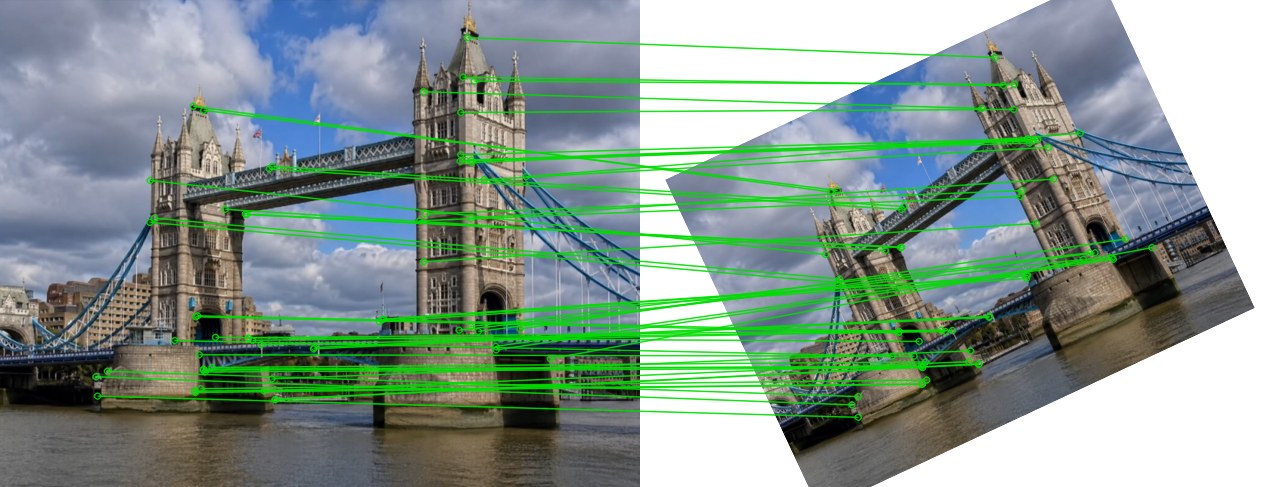
⑥ features find the same object again
Natural vs artificial intelligence

Natural intelligence
- Biological — present from birth
- Understands, imagines, feels
- Learns from a few experiences
Artificial intelligence
- Built by humans
- Follows algorithms (programs)
- Learns from lots of data
Computer vision is the part of AI that turns pixels into understanding: what is in the image, where it is, and what is happening.
Human vision vs computer vision

You see a green ridge, mist and mountains — instantly and without effort — your brain has learned to see over a lifetime.
The computer receives only a grid of numbers. Every task — classify, detect, segment, track — starts from those numbers.
Zoom in: an image is made of pixels
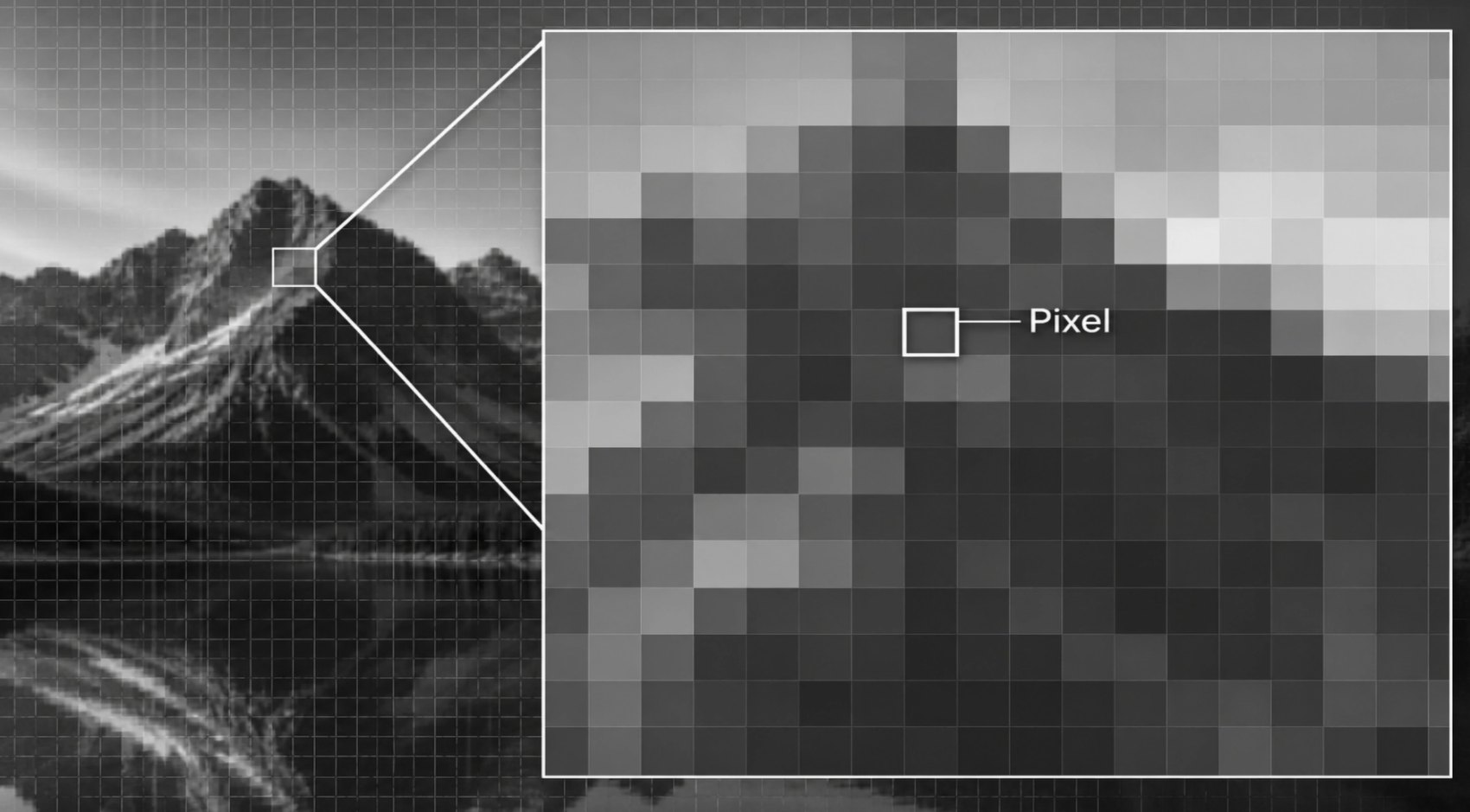
- A digital image is a grid of tiny squares called pixels (picture elements).
- Each pixel stores one value (grayscale) or three values (colour).
- Resolution = width × height.
Full HD: 1920 × 1080 = 2,073,600 pixels. - Zoom in far enough and the smooth mountain becomes visible squares.
Grayscale intensity: 0 to 255
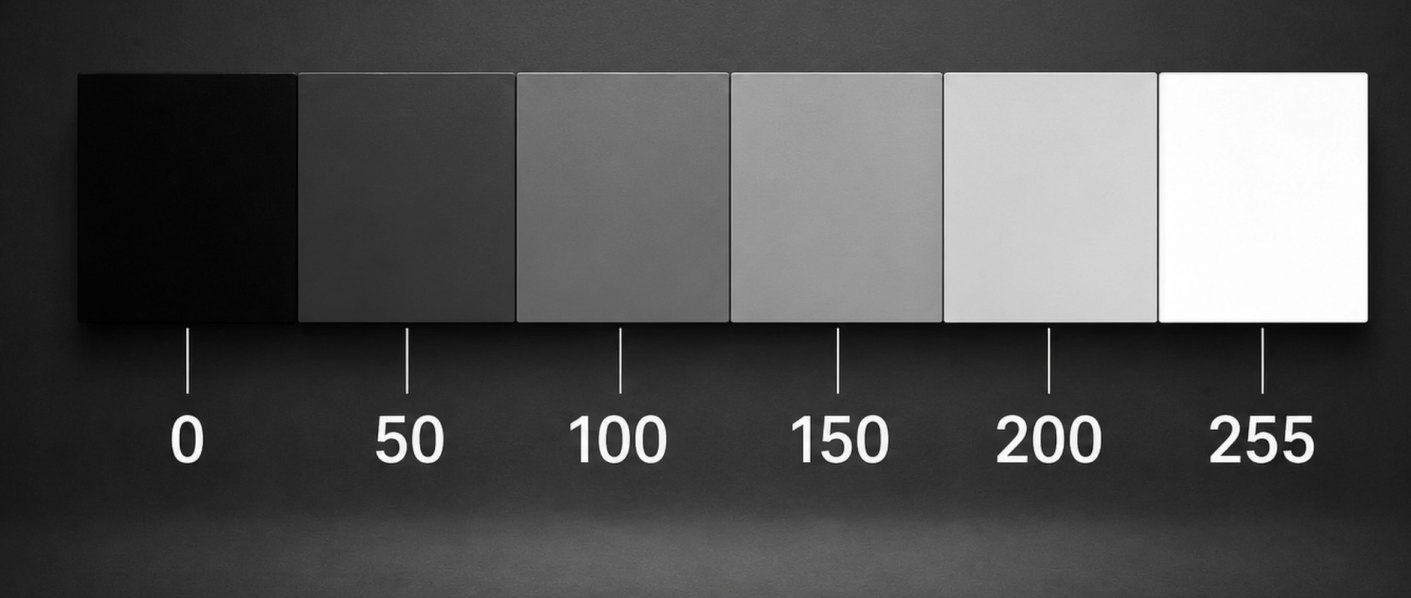
Why 0–255?
Each pixel uses 8 bits = 28 = 256 levels. 0 = black, 255 = white, everything else is a shade of gray. In NumPy the type is uint8.
uint8 wraps around: np.uint8(250) + 10 → 4. OpenCV saturates instead: cv2.add gives 255. Convert to float32 before doing arithmetic.A real image patch, as numbers
import cv2
img = cv2.imread("road.jpg", cv2.IMREAD_GRAYSCALE)
print(img.shape, img.dtype)   # (847, 1344) uint8
print(img[606, 452])          # row (y) first, then column (x)
patch = img[606:633:3, 452:494:3]
The red box covers road and lane paint. Road pixels are about 80; the paint jumps to about 200. A sudden jump like this is an edge — that is exactly what the filters in section 4 will find.
Colour images: three channels


- A colour pixel = (R, G, B), three 8-bit numbers.
- Each channel is a grayscale image on its own.
- The yellow line is bright in R and G but dark in B — yellow = red + green.
- OpenCV stores channels in B, G, R order!
256 × 256 × 256 = 16,777,216 colours

3 channels × 8 bits = 24-bit “true colour”, enough for more shades than the eye can tell apart.
How big is one frame?
1920 × 1080 × 3 bytes = 6,220,800 bytes ≈ 6.2 MB
Video at 30 fps → ≈ 187 MB every second, uncompressed.
That is why images and video are compressed (JPEG, H.264) — and why compression uses the YCbCr colour space you will meet shortly.
Images as tensors

A tensor is an n-dimensional array. Libraries disagree on the order of the axes:
| Library | Shape | Values |
|---|---|---|
| OpenCV / NumPy | (H, W, C), BGR | uint8 0–255 |
| Matplotlib / PIL | (H, W, C), RGB | uint8 |
| PyTorch | (N, C, H, W) | float32 0–1 |
rgb = cv2.cvtColor(img, cv2.COLOR_BGR2RGB)
t = torch.from_numpy(rgb)      # (H, W, 3)
t = t.permute(2, 0, 1) / 255.  # (3, H, W)
batch = t.unsqueeze(0)         # (1, 3, H, W)
Same image, different descriptions
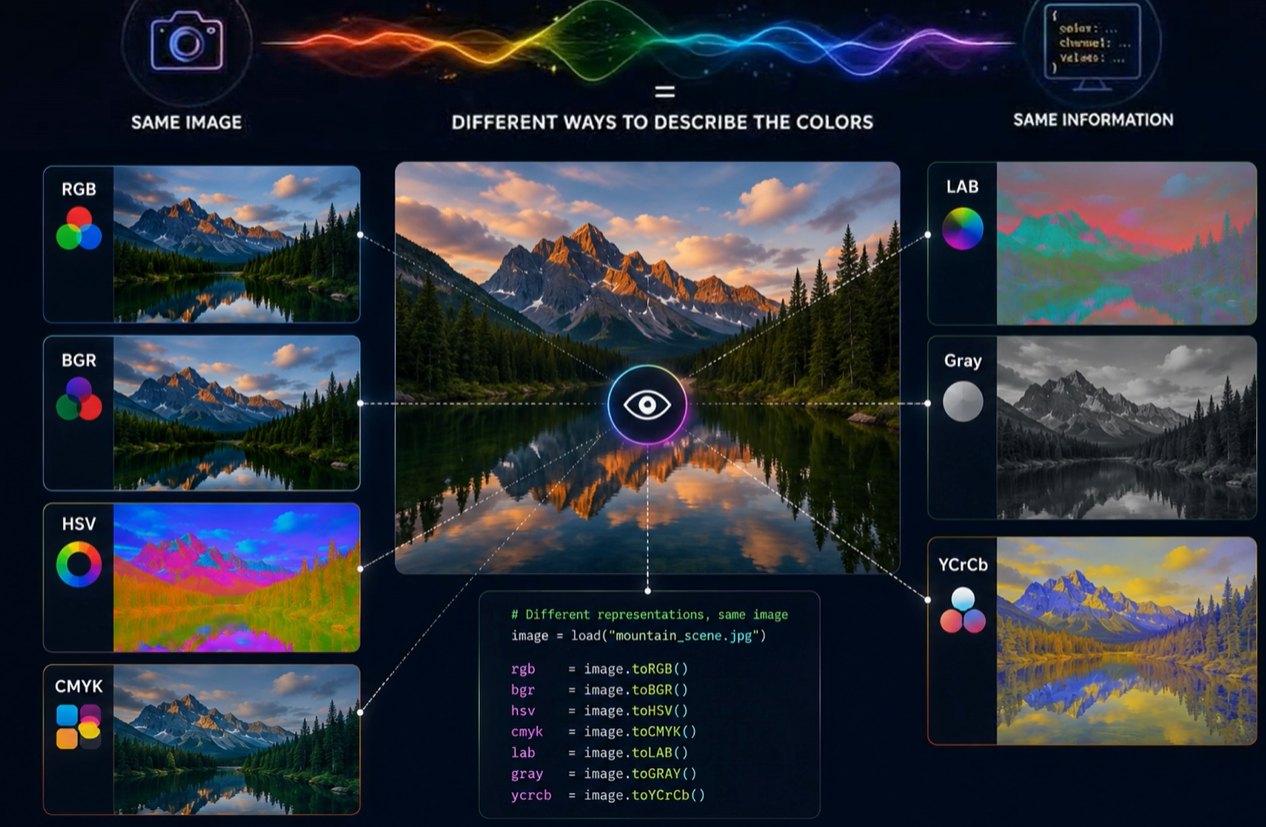
A colour space is a coordinate system for colour. Converting changes the numbers, not the information.
We switch spaces to separate what we care about:
- HSV / HLS — colour (hue) apart from brightness
- LAB — distances match human perception
- YCbCr — brightness apart from colour, for compression
- Gray — one channel, when colour does not matter
hsv = cv2.cvtColor(img, cv2.COLOR_BGR2HSV)
lab = cv2.cvtColor(img, cv2.COLOR_BGR2LAB)
OpenCV’s first gotcha: BGR, not RGB

img = cv2.imread("road.jpg")  # B, G, R
plt.imshow(img)               # wrong colours

rgb = cv2.cvtColor(img, cv2.COLOR_BGR2RGB)
plt.imshow(rgb)               # correct
OpenCV uses BGR for historical reasons: it was the common byte order of camera drivers and Windows bitmaps when the library was written. Everything else (Matplotlib, PIL, PyTorch models) expects RGB. Convert once, at the boundary.
Every space, channel by channel
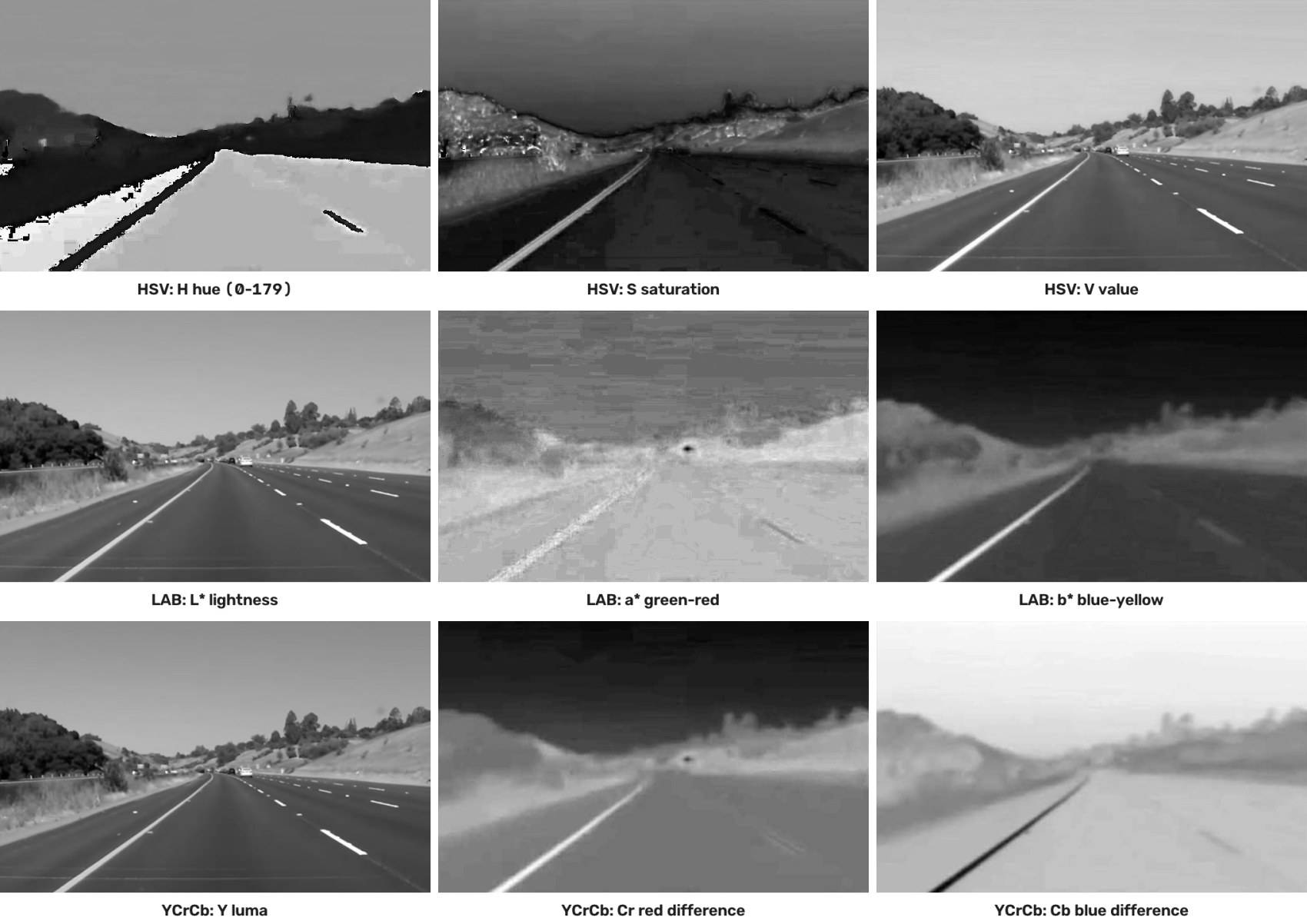
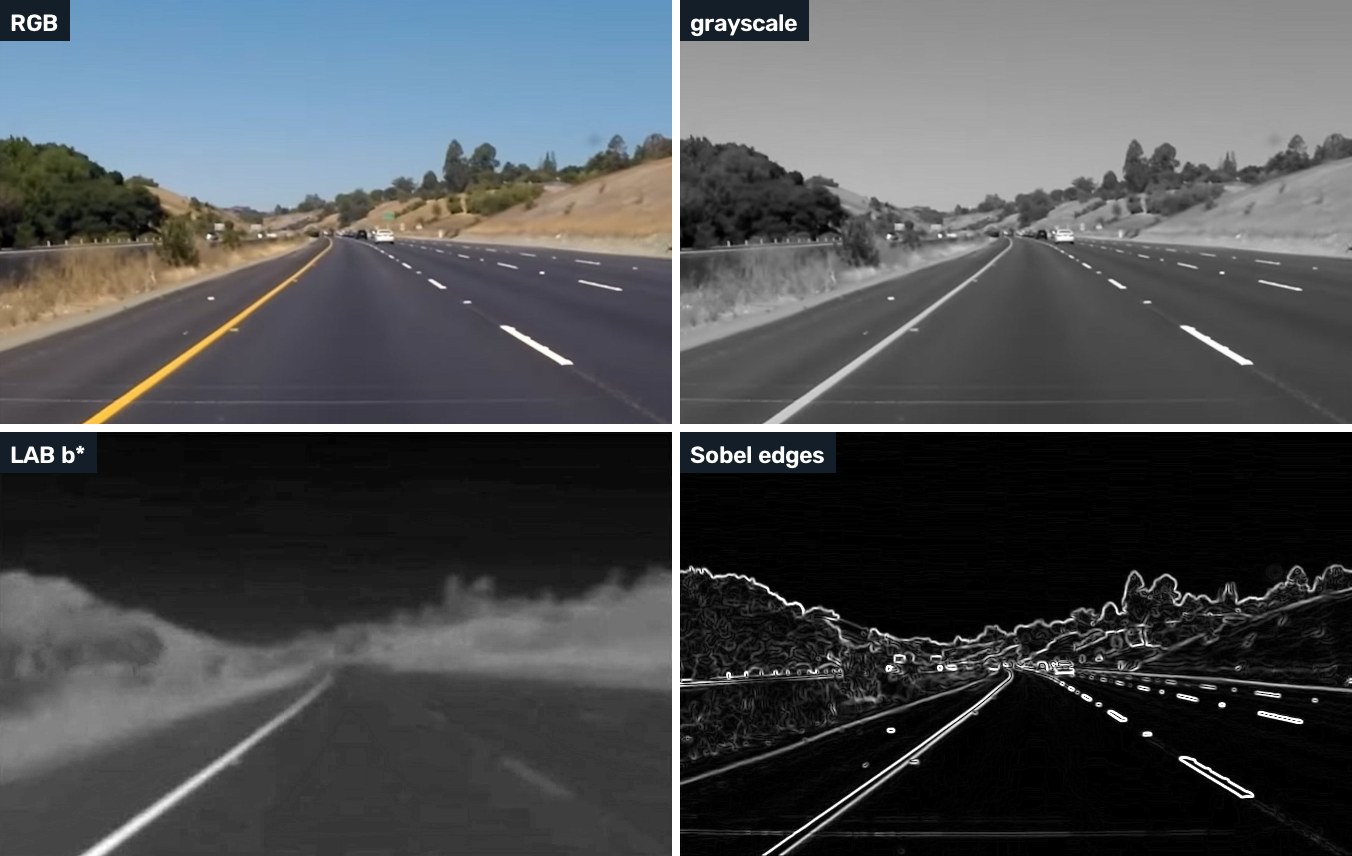
The same road in three colour spaces. Things to notice:
- V, L* and Y all look like a grayscale photo — they hold the brightness.
- H (hue) is flat across the whole road: hue ignores how bright things are.
- S (saturation) makes the colourful yellow line stand out against the gray road.
- b* and Cr/Cb separate yellow and blue: sky dark, yellow line bright.
Channels with a small range (H, a*, b*, Cr, Cb) are stretched to 0–255 for display.
HSV: hue, saturation, value

- H — hue: the colour itself, an angle around the cylinder (red → yellow → green → blue → red).
- S — saturation: how pure the colour is (0 = gray, max = vivid).
- V — value: how bright it is (0 = black).
uint8); S and V are 0–255.Why it helps: a yellow line in shadow changes V a lot but H very little, so thresholding H is much more robust than thresholding RGB.
HSV in practice: select the lane paint
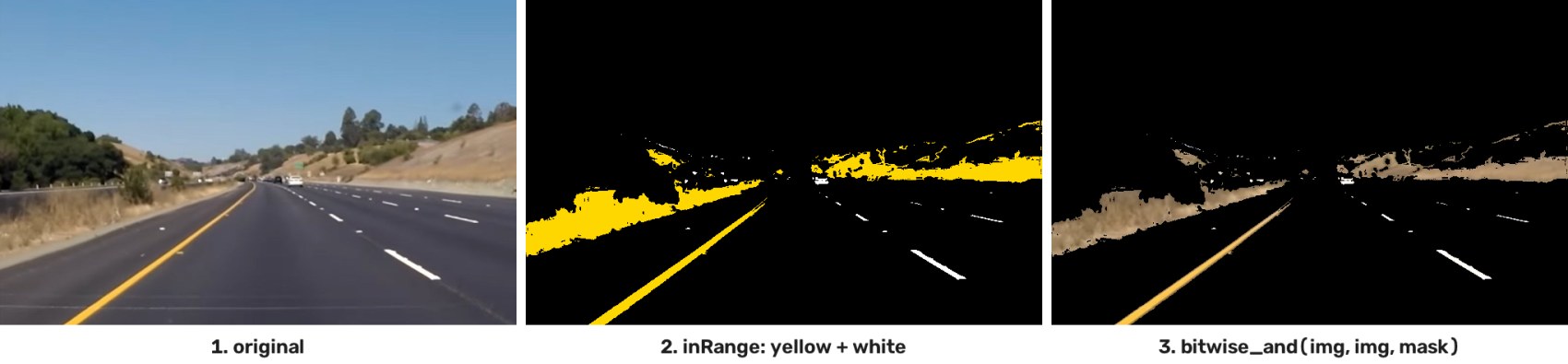
hsv = cv2.cvtColor(img, cv2.COLOR_BGR2HSV)
# bounds are (H, S, V)
yellow = cv2.inRange(hsv, (15, 80, 120), (35, 255, 255))
white  = cv2.inRange(hsv, (0, 0, 200), (179, 40, 255))
mask   = cv2.bitwise_or(yellow, white)
result = cv2.bitwise_and(img, img, mask=mask)
Look closely: the dry grass is yellow too, so colour alone is not enough. In Part II we add a region-of-interest mask to keep only the road.
LAB: a colour space built around human perception

- L* — lightness, black (0) → white (100)
- a* — green (−) ↔ red (+)
- b* — blue (−) ↔ yellow (+)
Perceptually uniform: the same distance in LAB looks like the same colour difference to a person (ΔE). Used for colour matching, printing quality checks and robust segmentation.
Why it matters: finding a yellow line

Grayscale
Yellow paint ends up a similar gray to the road: low contrast, easy to miss in shadow.
HLS S channel
Saturated paint is bright, gray asphalt is dark — but the grass is bright too.
LAB b* channel
Yellow is large positive b*: the line pops out and the sky turns dark.
Application: lane finding with LAB
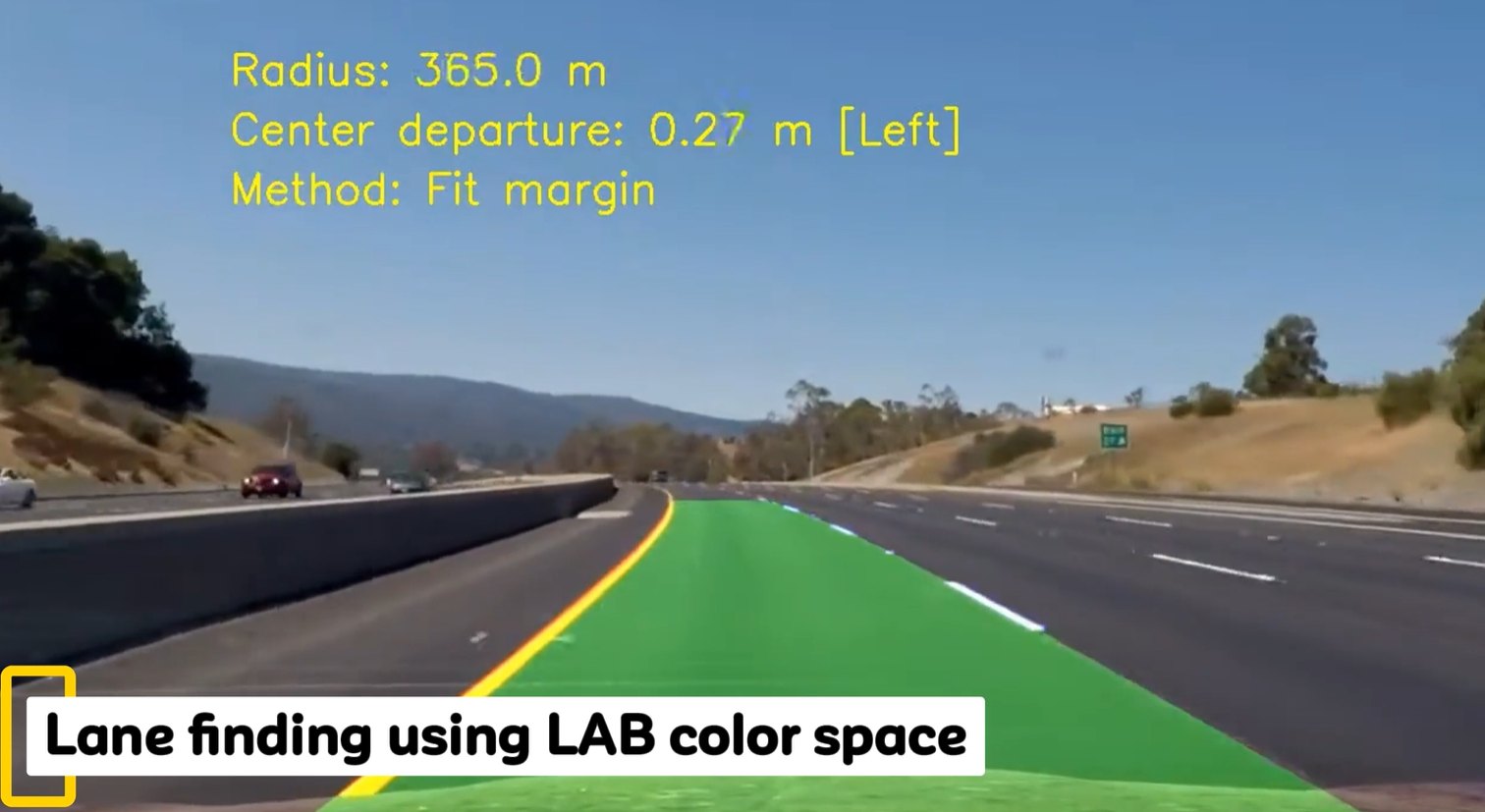
An advanced lane finder thresholds the LAB b* channel for yellow paint and the L* channel for white paint, fits curves to the lane pixels, and reports:
- radius of curvature (here 365 m)
- how far the car is from the lane centre
In Part II you build the simpler version step by step: colour selection → region mask → Canny → Hough lines.
YCbCr: brightness plus two colour differences

- Y (luma) = 0.299 R + 0.587 G + 0.114 B — the eye is most sensitive to green.
- Cb = blue − Y, Cr = red − Y (colour differences). OpenCV order: Y, Cr, Cb.
Where it is used
- JPEG and video: the eye sees less colour detail than brightness detail, so Cb and Cr are stored at lower resolution (4:2:0).
- Skin detection: skin tones form a tight cluster in Cb–Cr.
CMYK: colour for printers
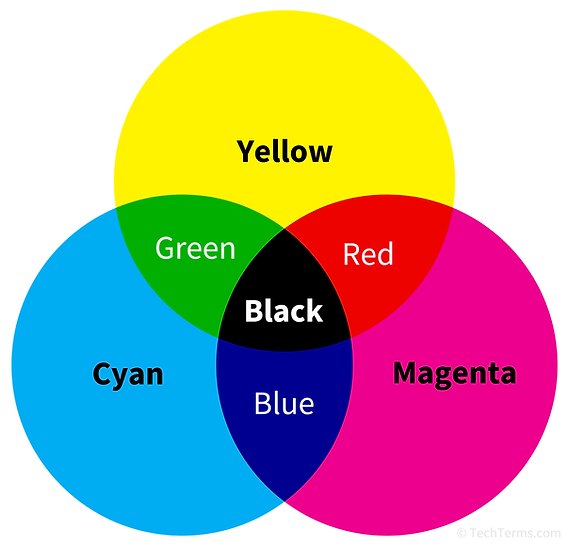
- Subtractive: inks absorb light. Cyan + magenta + yellow → (almost) black.
- K = key (black) ink: a real black, cheaper and sharper text.
- Screens emit light → RGB is additive. Paper reflects light → CMYK.
CMYK is a printing space. OpenCV has no CMYK conversion and you will rarely use it in a vision pipeline — but you should recognise it.
04 · Lecture 5 · Part I · Image processing
Filters
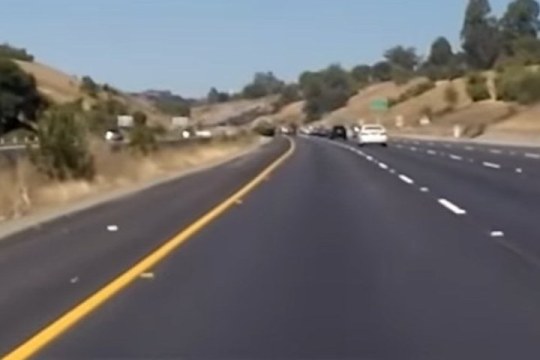
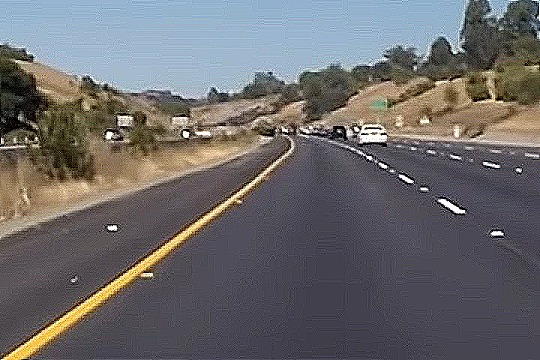
Slide a small kernel over every pixel and replace it with a weighted sum of its neighbours. Same image, different kernel, very different result.


of 5×5

Types of image filters
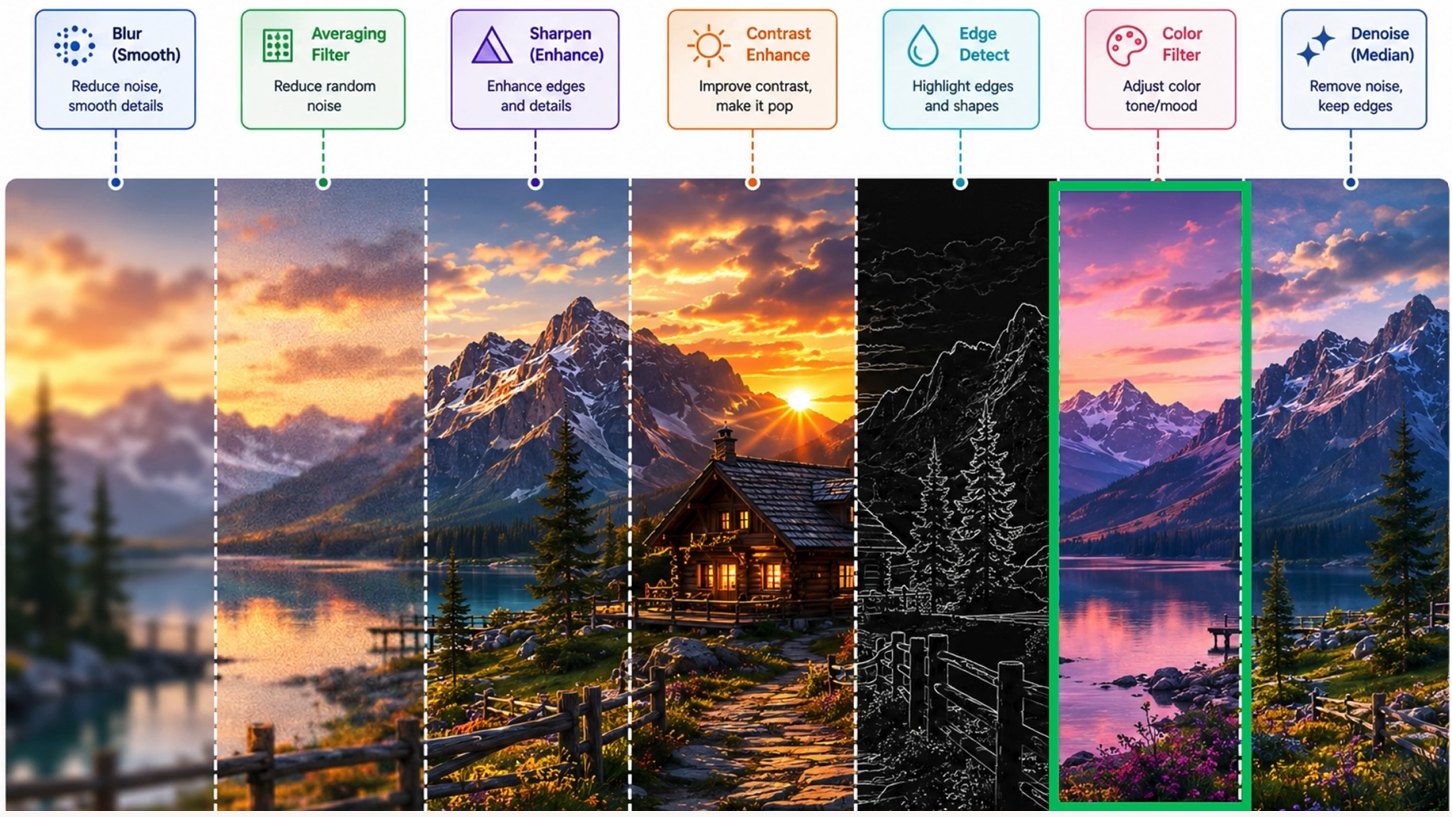
Neighbourhood filters (this lecture) look at a pixel and its neighbours: blur, sharpen, edges, median.
Point operations look at one pixel at a time: contrast, brightness, colour tone (Lecture 3).
The averaging filter, worked by hand
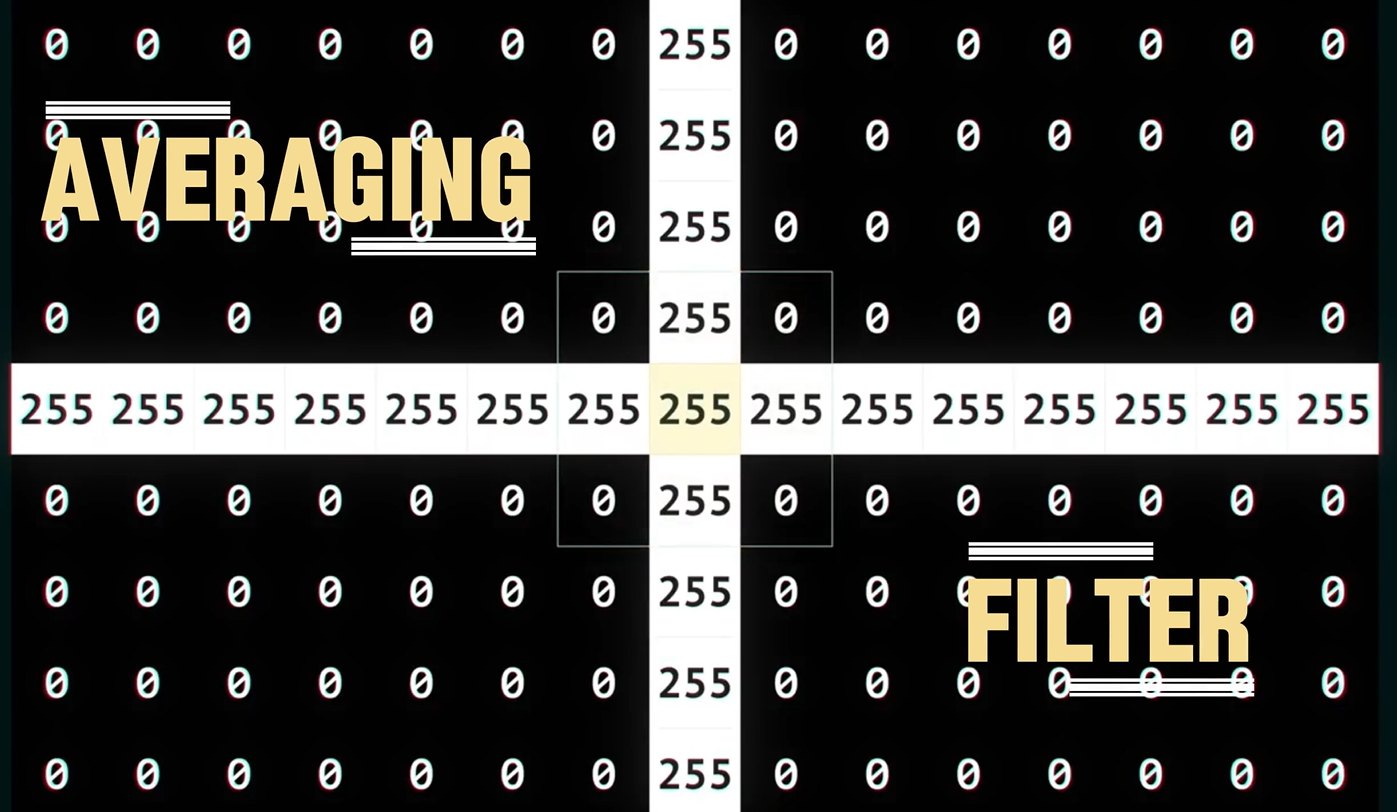
① a white cross (255) on black (0); 3 × 3 window on the centre

② add the 9 values: 5 × 255 = 1275
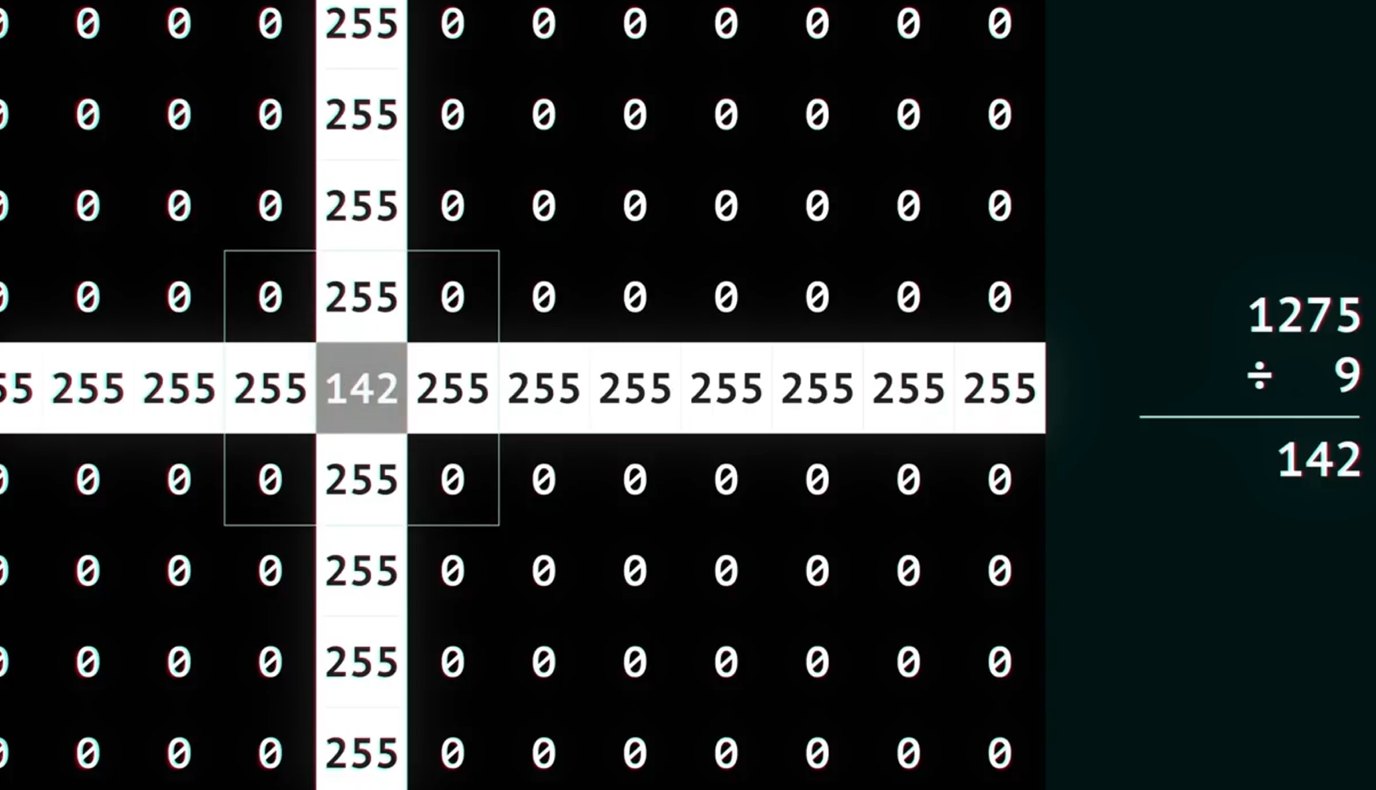
③ divide by 9: 1275 ÷ 9 = 141.7 → 142
The centre drops from 255 to 142, and the black pixels next to the line become gray. Repeat everywhere: the sharp cross becomes a soft, wider blur. Averaging removes noise — but also detail.
Kernel size matters

for k in (3, 9, 21):
    out = cv2.blur(img, (k, k))     # k x k box filter
- Bigger kernel → more smoothing, more detail lost.
- Sizes are odd (3, 5, 7…) so there is a centre pixel.
- Cost grows with k² — use the smallest size that works.
Gaussian blur: closer neighbours count more

Instead of equal weights, use a bell curve:
\[ G(x,y) = \frac{1}{2\pi\sigma^2}\, e^{-\frac{x^2+y^2}{2\sigma^2}} \]
3 × 3 Gaussian kernel, ÷ 16.
Centre weight 4, corners 1.
- σ (sigma) controls the strength of the blur.
- Smoother and more natural than a box filter, with no “blocky” artefacts.
- Standard first step before edge detection.
out = cv2.GaussianBlur(img, (5, 5), 0) # sigma 0 → from size
Median blur: take the middle value
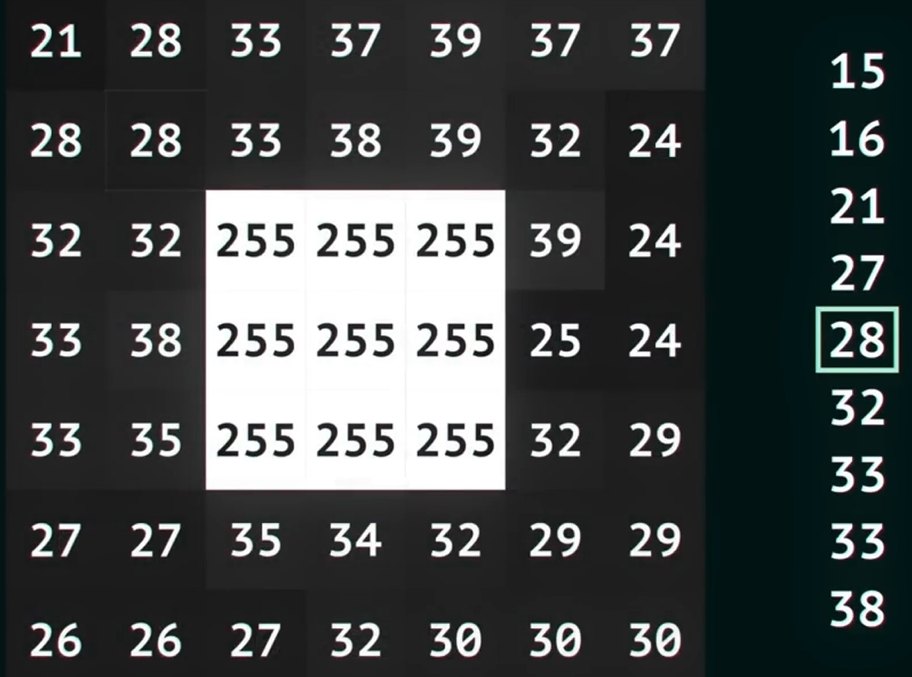
- Collect the 9 values in the 3 × 3 window.
- Sort them.
- Take the middle (5th) value: here 28.
- Non-linear: no kernel weights, no sum.
- One extreme value (a 255 speck) can never become the answer → perfect for salt-and-pepper noise.
- Keeps edges sharp, because the output is always a value that really occurs in the window.
out = cv2.medianBlur(img, 5) # kernel size must be odd
Which blur for which noise?

Gaussian noise (every pixel a bit off) → Gaussian blur averages it away.
Salt & pepper (a few pixels completely wrong) → median ignores the outliers.
Edge detectors compared
gray = cv2.cvtColor(img, cv2.COLOR_BGR2GRAY)
gray = cv2.GaussianBlur(gray, (3, 3), 0)

sx  = cv2.Sobel(gray, cv2.CV_64F, 1, 0, ksize=3)
sy  = cv2.Sobel(gray, cv2.CV_64F, 0, 1, ksize=3)
mag = cv2.magnitude(sx, sy)

lap = cv2.Laplacian(gray, cv2.CV_64F)
can = cv2.Canny(gray, 80, 180)
Use CV_64F, not uint8: a dark→bright edge is positive and bright→dark is negative; uint8 would clip it to 0 and lose half of the edges.
From edges to shapes
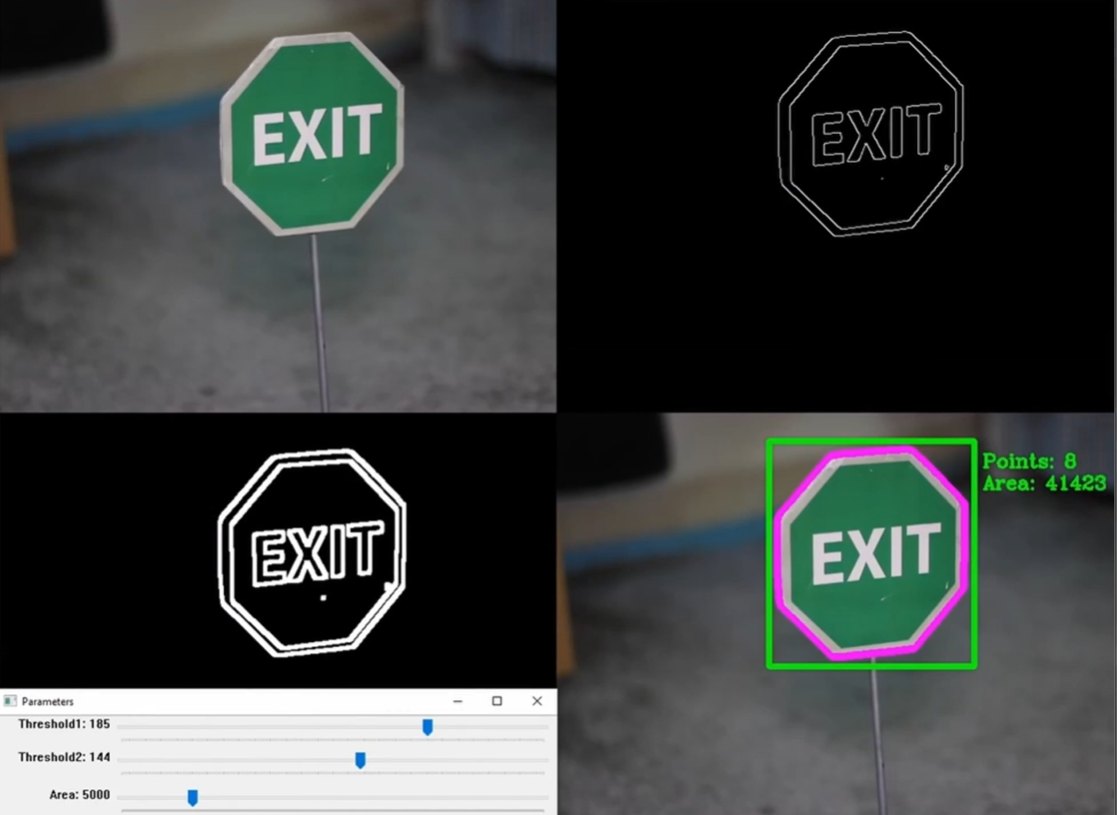
The classic shape pipeline:
The EXIT sign has 8 corners → octagon. The trackbars set the two Canny thresholds and the minimum area.
Contours: classify a shape by counting its corners

gray = cv2.cvtColor(img, cv2.COLOR_BGR2GRAY)
_, mask = cv2.threshold(gray, 200, 255, cv2.THRESH_BINARY_INV)
cnts, _ = cv2.findContours(mask, cv2.RETR_EXTERNAL,
                           cv2.CHAIN_APPROX_SIMPLE)
for c in cnts:
    peri   = cv2.arcLength(c, True)
    approx = cv2.approxPolyDP(c, 0.02 * peri, True)
    corners = len(approx)        # 3 triangle, 4 square/rect, ...
    x, y, w, h = cv2.boundingRect(approx)
A contour is the list of boundary points of a white region in a binary mask.
approxPolyDPsimplifies the outline to a polygon; ε = 2% of the perimeter.- 4 corners: square if w ≈ h, else rectangle.
- Many corners → circle or ellipse.
Contours step by step
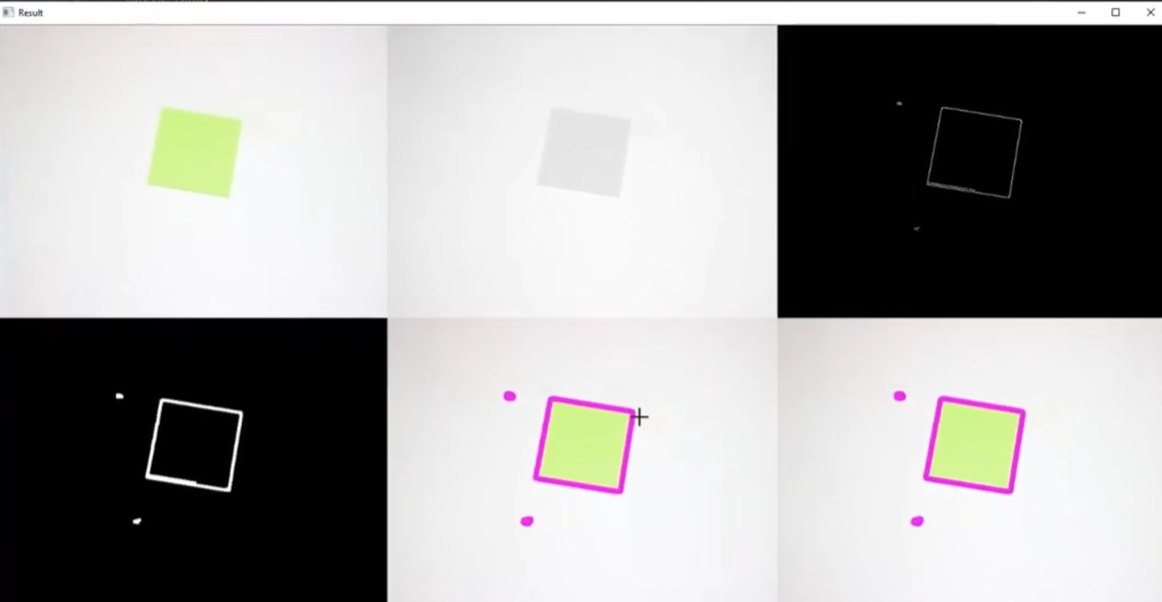
Top row → bottom row:
- original image
- gray + blur
- Canny edges
- dilated edges (gaps closed)
- contour with its corner points — small specks are also found
- final result: only contours larger than a minimum area are kept
Clean the mask before you count

k = cv2.getStructuringElement(cv2.MORPH_ELLIPSE, (5, 5))
mask = cv2.morphologyEx(mask, cv2.MORPH_OPEN,  k)  # remove specks
mask = cv2.morphologyEx(mask, cv2.MORPH_CLOSE, k)  # fill holes
n = len(cv2.findContours(mask, cv2.RETR_EXTERNAL,
                         cv2.CHAIN_APPROX_SIMPLE)[0])
Without cleanup: 20 “objects” — every speck of noise and every split piece count as separate objects.
With morphology: 5 objects, the correct count. Opening removes specks; closing fills small holes.
Contour features: points and area
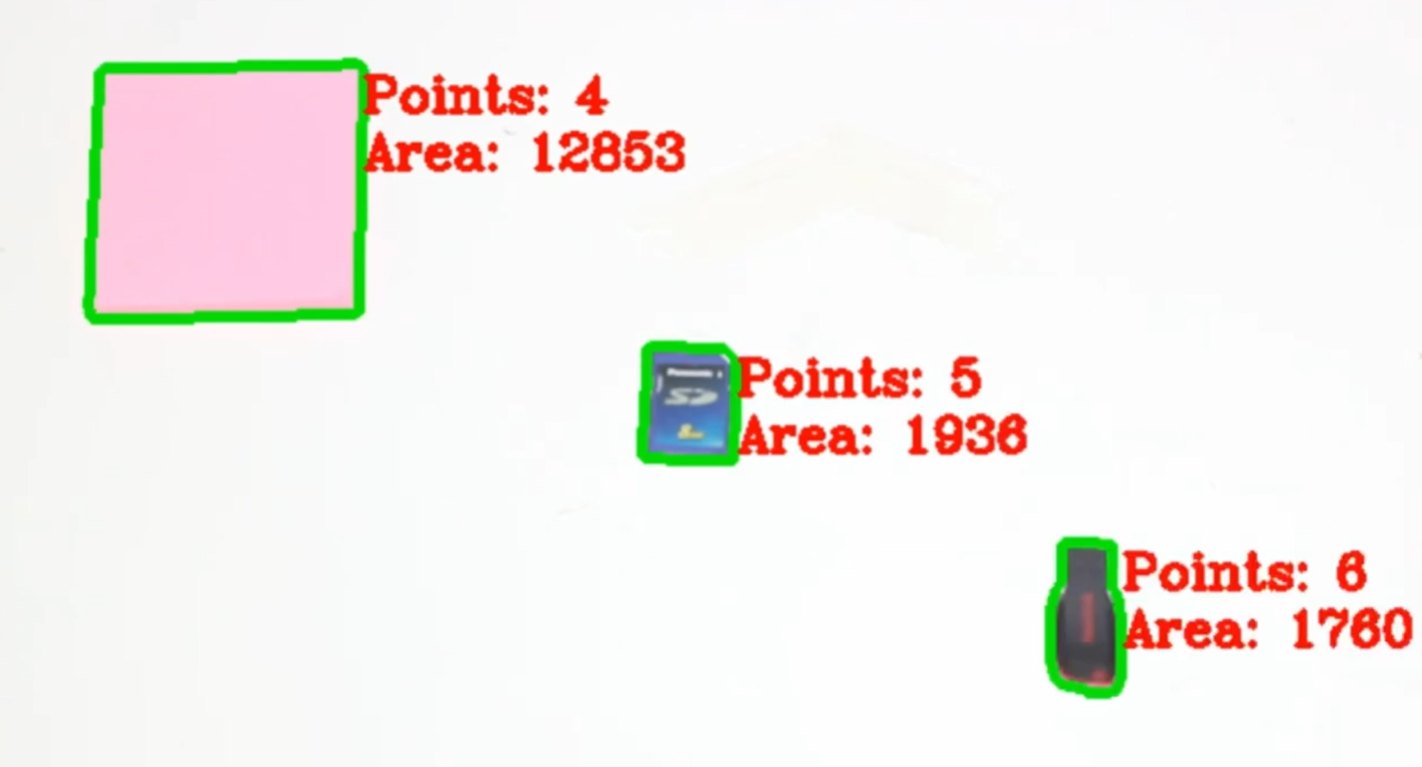
for c in cnts:
    area = cv2.contourArea(c)
    if area < 1000:   # ignore noise
        continue
    peri   = cv2.arcLength(c, True)
    approx = cv2.approxPolyDP(c, 0.02 * peri, True)
    cv2.drawContours(img, [c], -1, (0, 255, 0), 3)
    txt = f"Points: {len(approx)}  Area: {int(area)}"
    cv2.putText(img, txt, (x, y), font, 1, red, 2)
Area and corner count are simple features: numbers that describe an object. They work for clean shapes — but can they tell two different logos apart? →
Shapes aren’t enough to find a specific logo
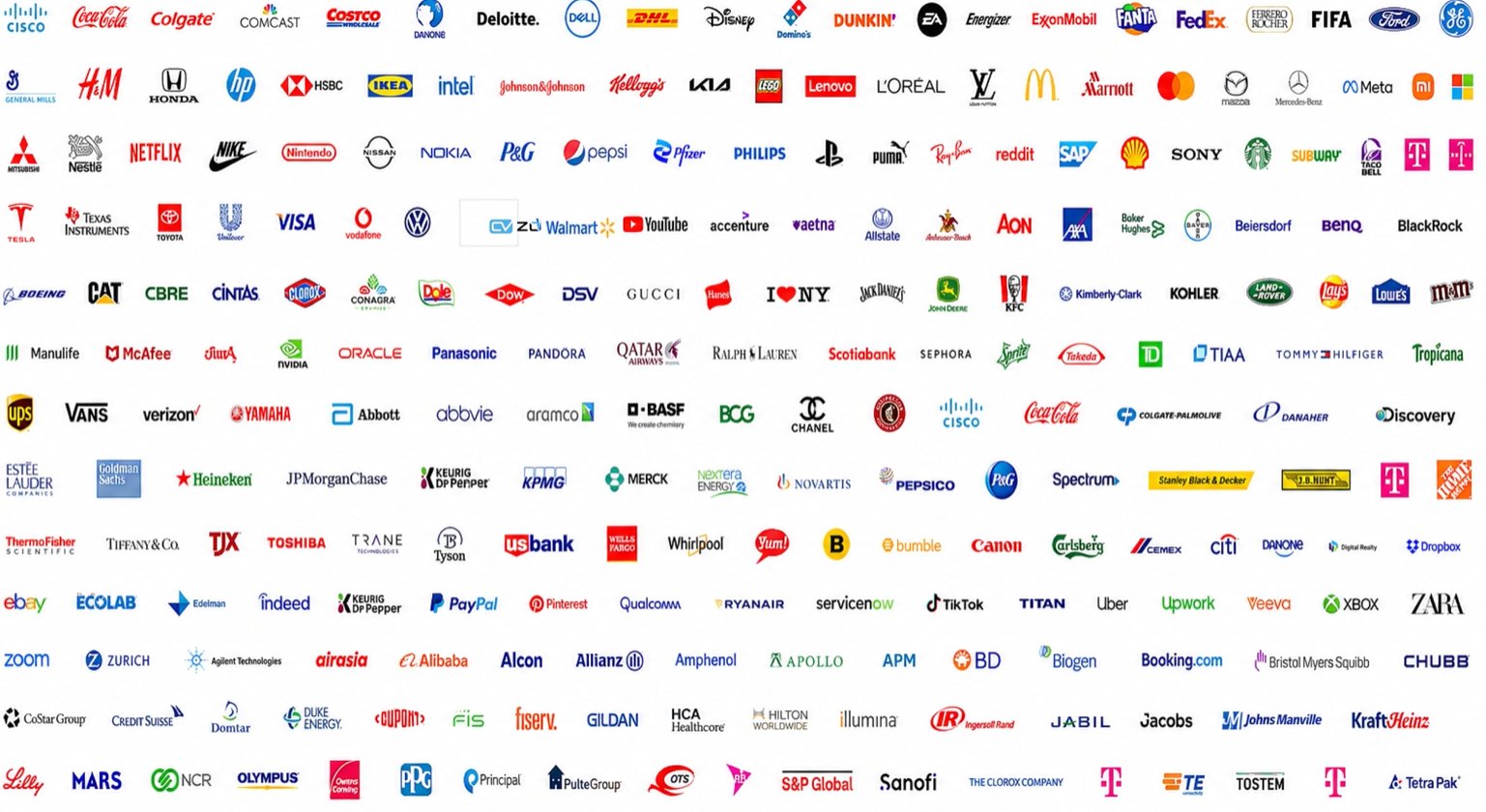
Hundreds of logos — most are circles, rectangles or words.
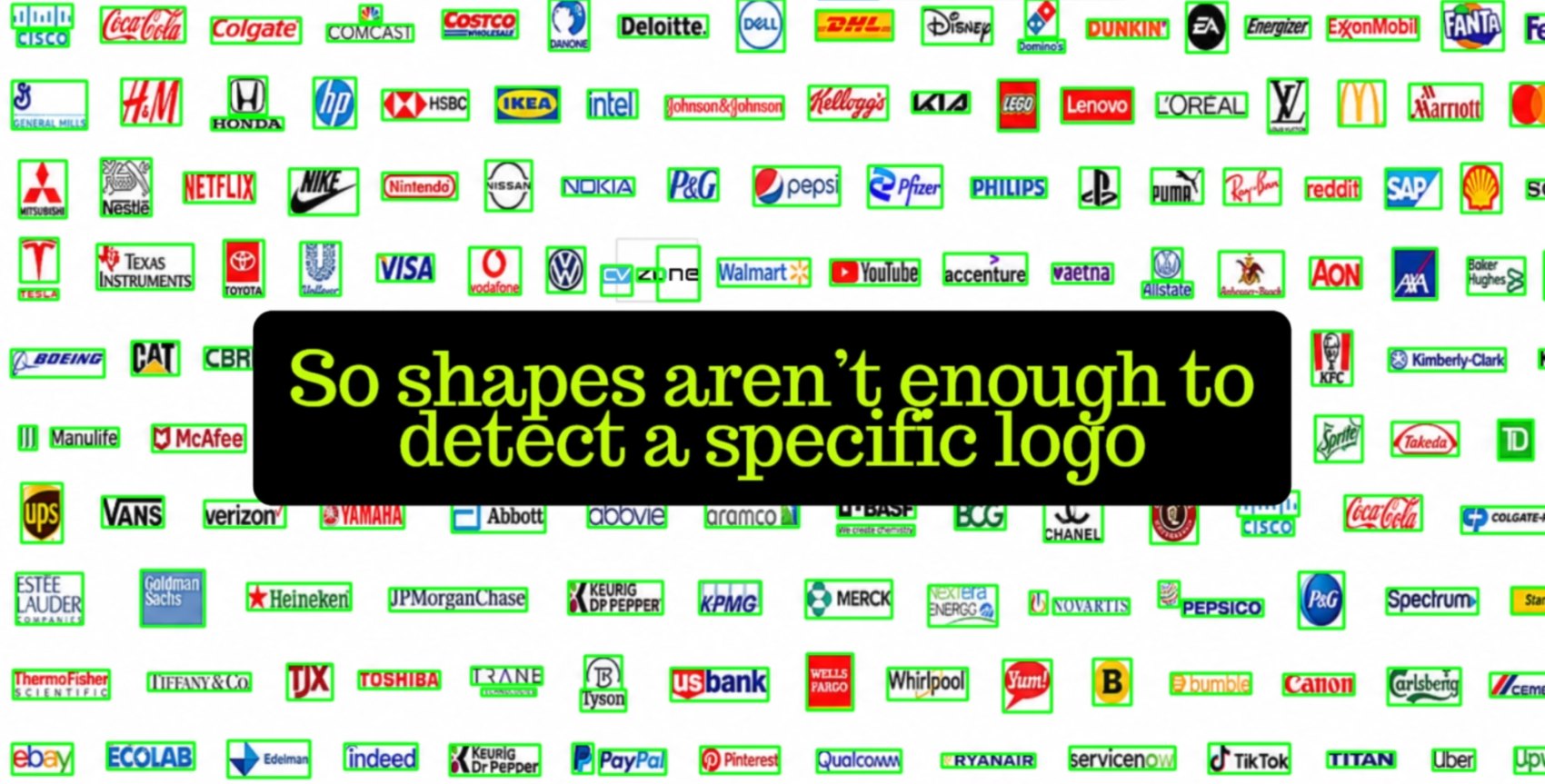
A shape detector boxes every logo — it cannot say which one is which.
To recognise one particular object we need distinctive local patterns — corners, textures, letter shapes — that appear on that object and nowhere else. These are features.
Shape-based vs feature-based detection

| Shape-based | Feature-based | |
|---|---|---|
| Looks at | outline, corners, area | many small, distinctive patches |
| Finds | “a square”, “an octagon” | “this logo”, “this face” |
| Rotation / scale | fragile | robust (with the right descriptor) |
| Occlusion | fails if the outline breaks | works with some features hidden |
Features in action: face landmarks
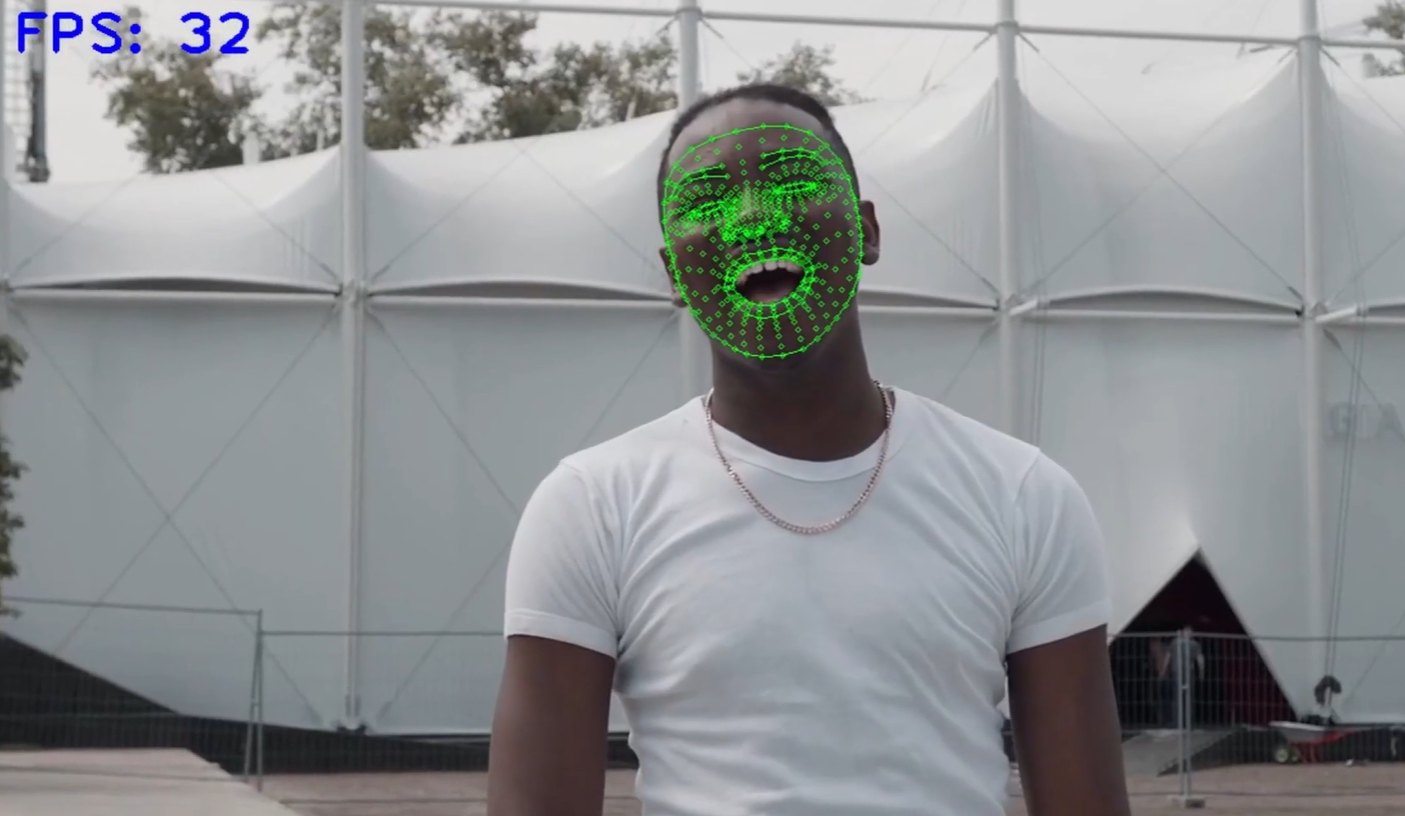

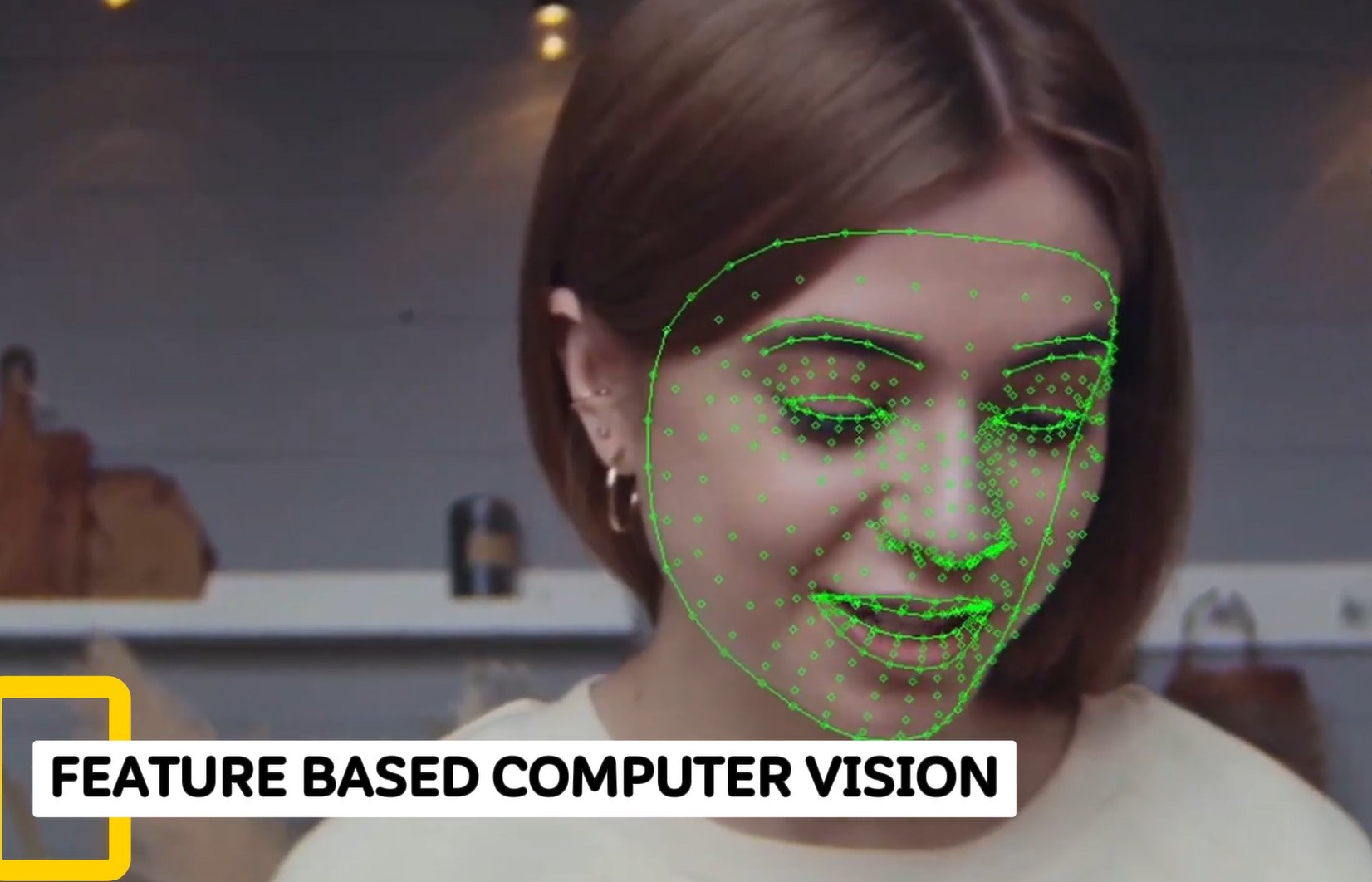
Hundreds of landmarks — eye corners, lip contours, nose, jaw line — are found and tracked in real time (here at 32 fps). They work across poses, expressions, ages and skin tones, and drive face filters, driver-drowsiness alerts and avatar animation.
What is a feature? A keypoint plus a descriptor
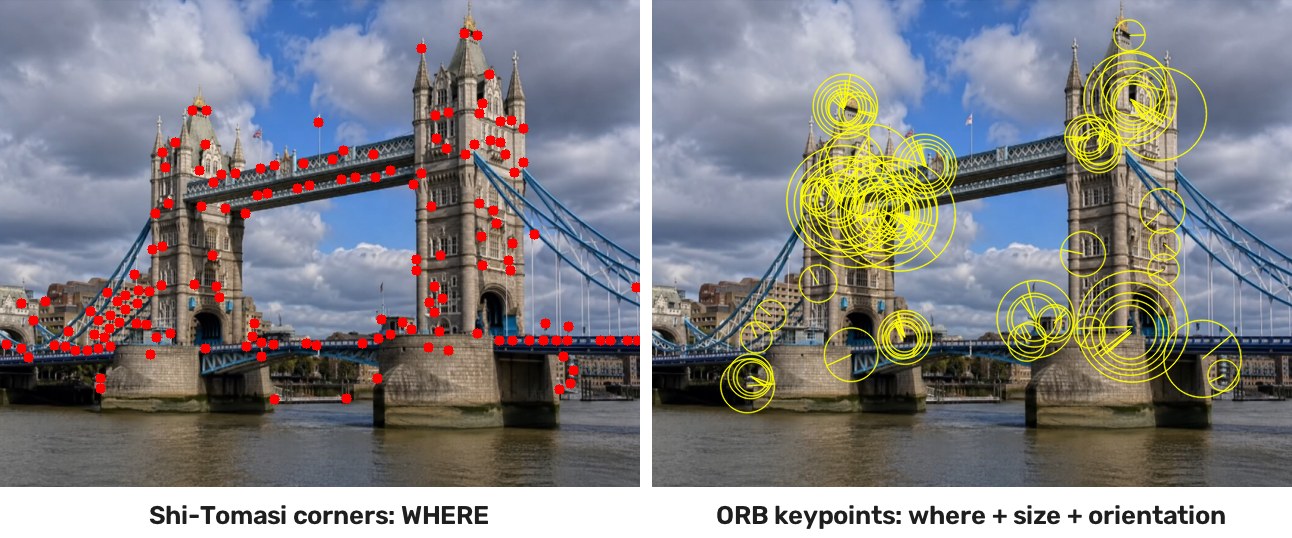
① Keypoint — where
A point that can be found again: corners are good, edges are ambiguous, flat areas are useless. ORB also stores a size and an orientation.
② Descriptor — what
A vector that summarises the patch around the keypoint. ORB uses 256 bits; SIFT uses 128 numbers.
Good features are …
repeatable, distinctive, and invariant to rotation, scale and lighting.
Features describe the whole scene

Each yellow circle is a keypoint; its size is the scale at which it was found. Below, every keypoint becomes a descriptor — a point in a high-dimensional space.
Classic detectors and descriptors:
- Harris (1988) — corners
- SIFT (2004) — scale and rotation invariant; free in OpenCV since its patent expired in 2020
- ORB (2011) — fast, binary, free: the default choice on a Raspberry Pi
Matching features works like fingerprint matching
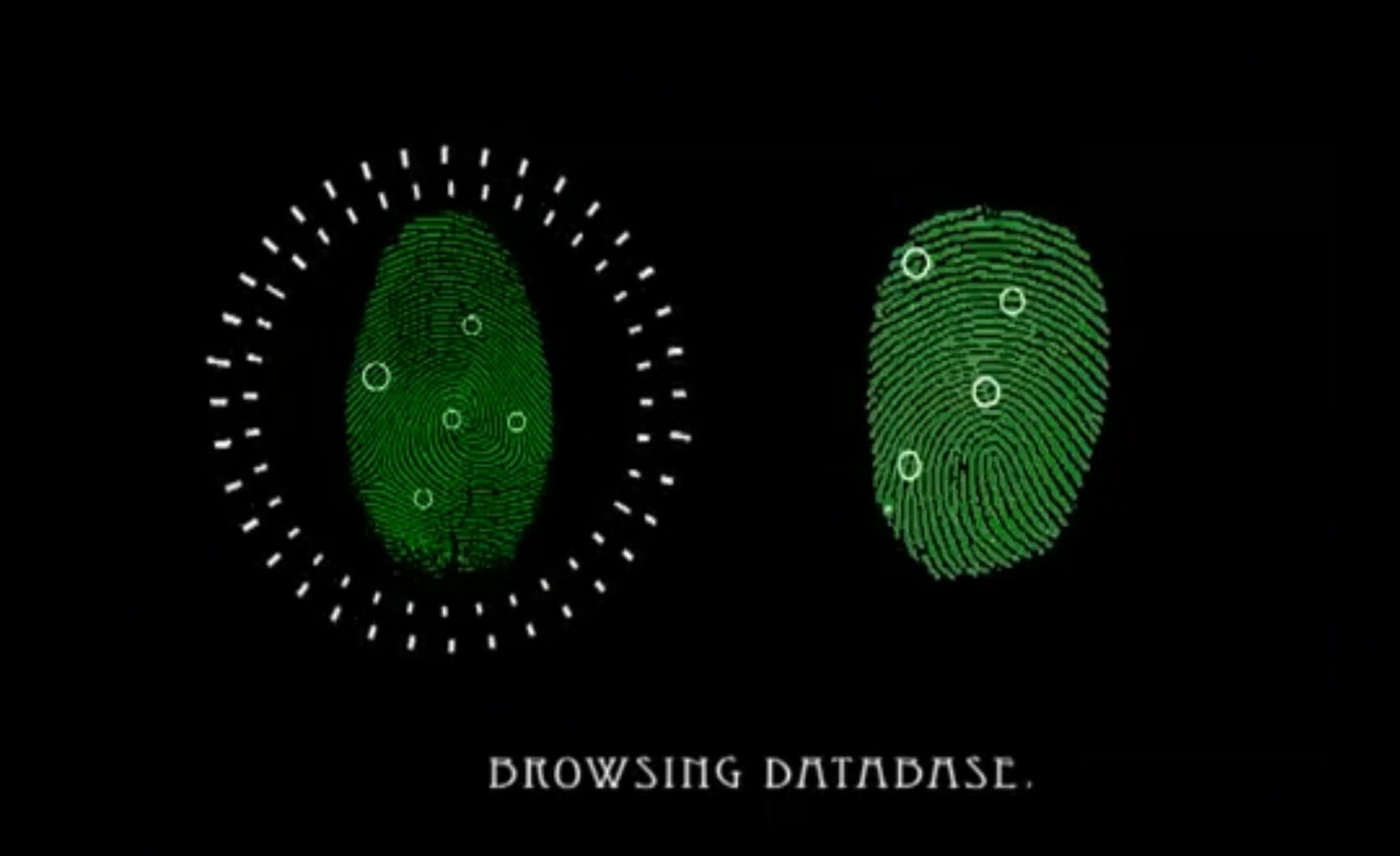
① find distinctive points (minutiae)

② compare their descriptions with the database
③ enough consistent matches → same finger
Image matching does the same: compare descriptors, keep the nearest neighbours, and check that the matches agree on one geometric transformation.
ORB feature matching in OpenCV
orb = cv2.ORB_create(1500)
k1, d1 = orb.detectAndCompute(gray1, None)
k2, d2 = orb.detectAndCompute(gray2, None)

bf   = cv2.BFMatcher(cv2.NORM_HAMMING)
good = [m for m, n in bf.knnMatch(d1, d2, k=2)
        if m.distance < 0.75 * n.distance]  # ratio test
H, inl = cv2.findHomography(pts1, pts2, cv2.RANSAC, 5.0)
The right image is rotated 25° and scaled to 75%. Still:
- 1500 keypoints per image
- 541 pass the ratio test
- 534 agree on one transformation (RANSAC)
Classroom demo: matching survives rotation

The same ORB pipeline on a photo and a rotated copy of it. Most green lines connect the same point on the dog — the ear, the eye, the nose.
A few lines cross the image: these are wrong matches (outliers). That is why we use the ratio test and RANSAC.
Applications: panorama stitching, visual odometry and SLAM, augmented reality, object instance recognition.
Hand-crafted vs learned features
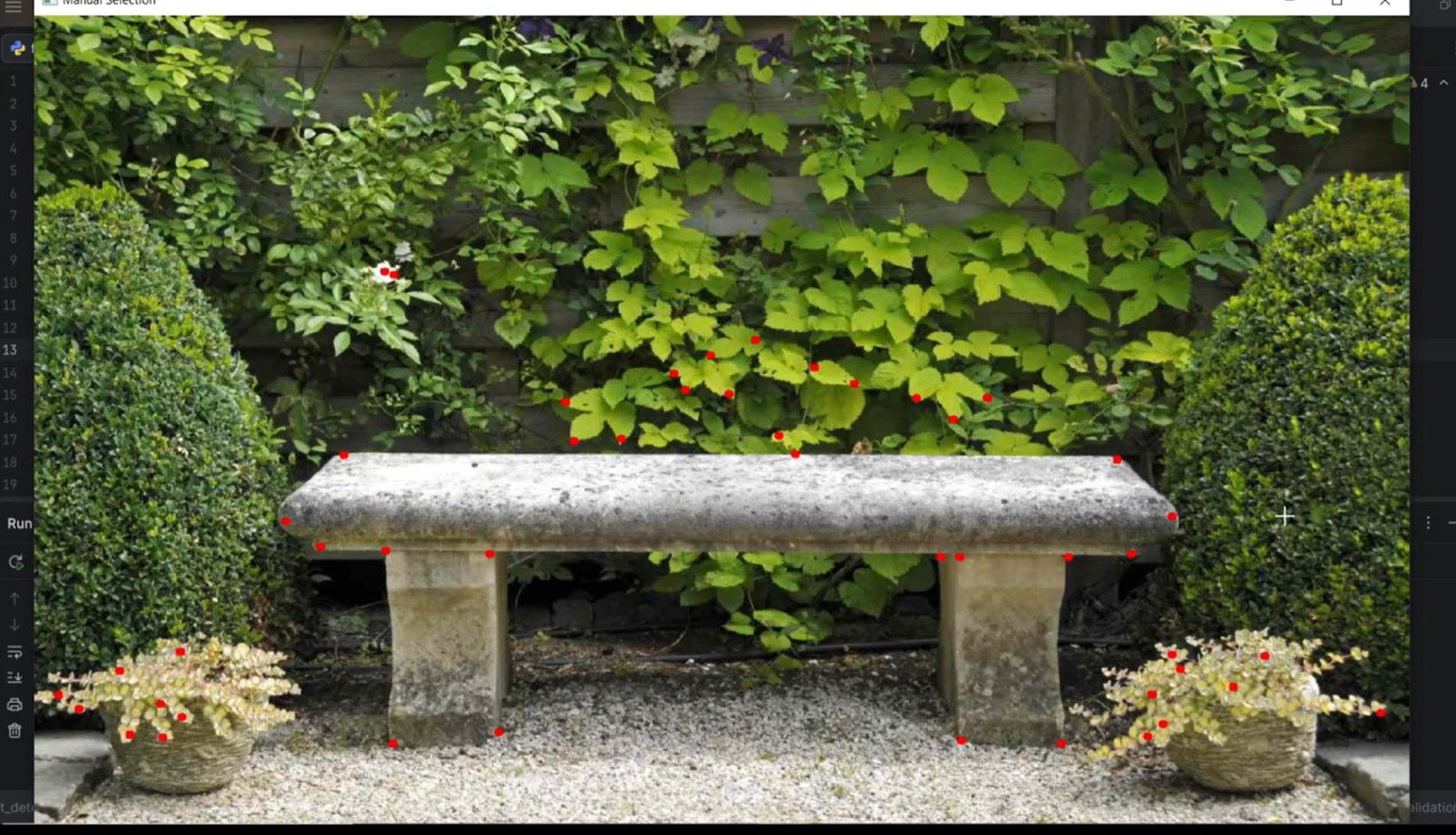
Hand-crafted: a corner detector designed by people finds bench corners and leaf tips.

Learned: a pretrained CNN’s feature map — the network decided for itself which patterns matter.
Hand-crafted features (Harris, SIFT, ORB) follow rules we wrote. Deep networks learn their features from millions of examples — which brings us to the last section.
From writing rules to learning them
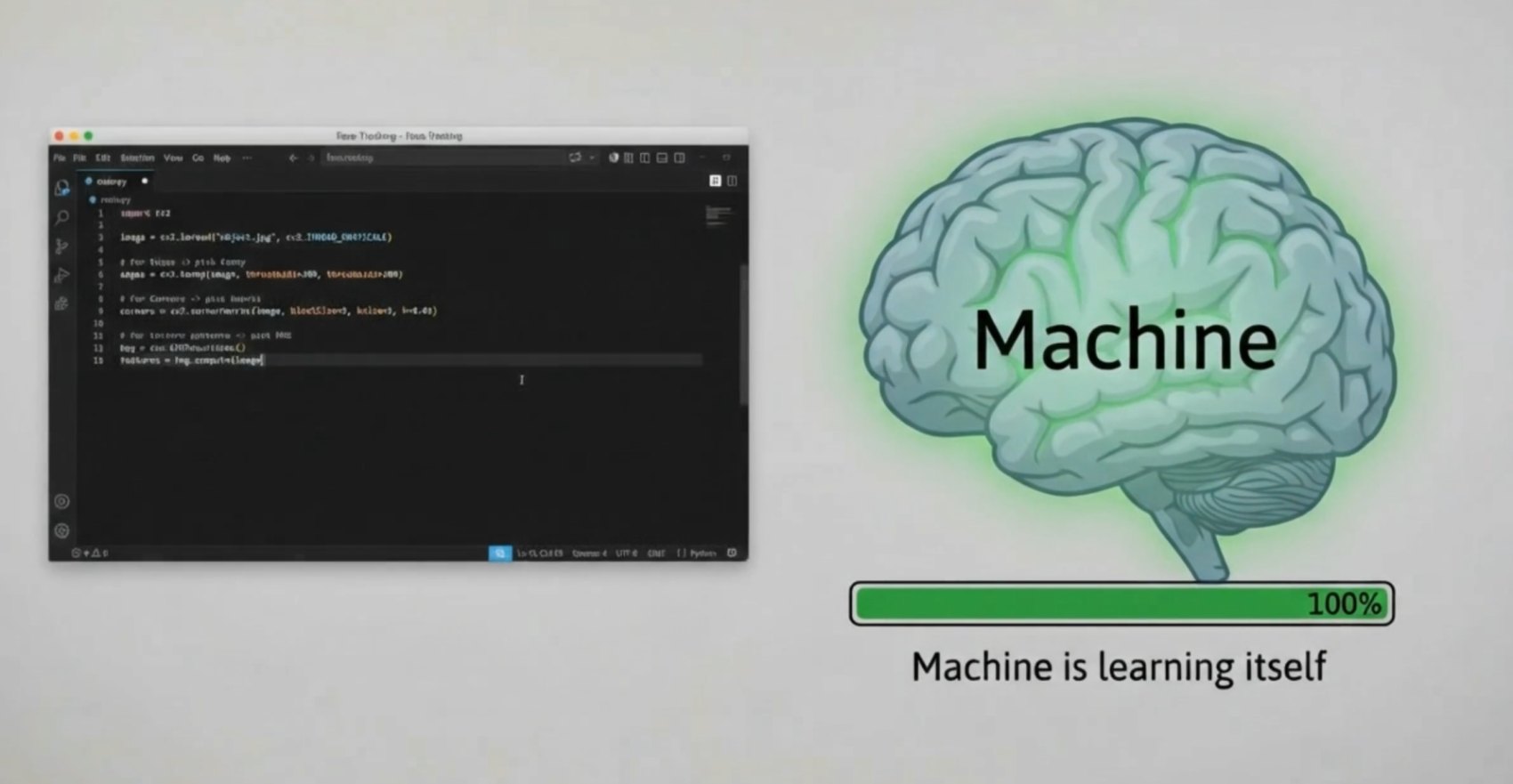
Classical computer vision
A person chooses the colour space, the thresholds, the kernels and the features. Everything in sections 2–6 of this lecture.
Deep learning
We provide labelled examples; the network learns its own kernels and features by trial and error.
Performing a task without explicit programming


Machine learning is the “field of study that gives computers the ability to learn without being explicitly programmed” (definition often attributed to Arthur Samuel, 1959). For vision, the program is replaced by a dataset: thousands of images of cars, dogs, bicycles, STOP signs and faces, each with its label.
How a network learns: predict, compare, adjust
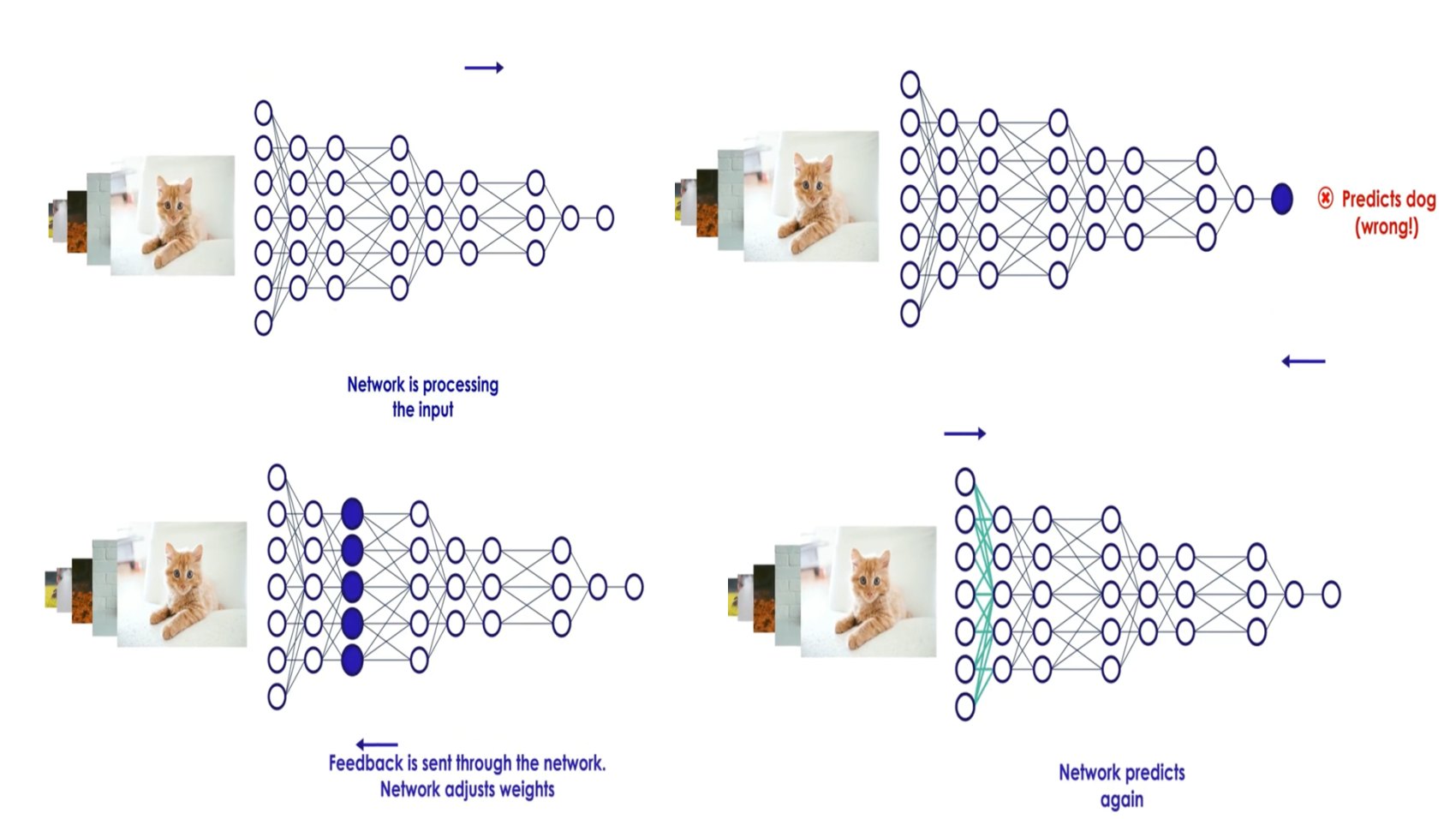
- Forward pass: the cat image flows through the layers.
- The network predicts “dog” — wrong.
- The loss measures the error; back-propagation sends it backwards and every weight is nudged a little.
- Predict again. Repeat over millions of images.

After training: “CAT (correct!)”
Recognising handwritten digits: still just numbers
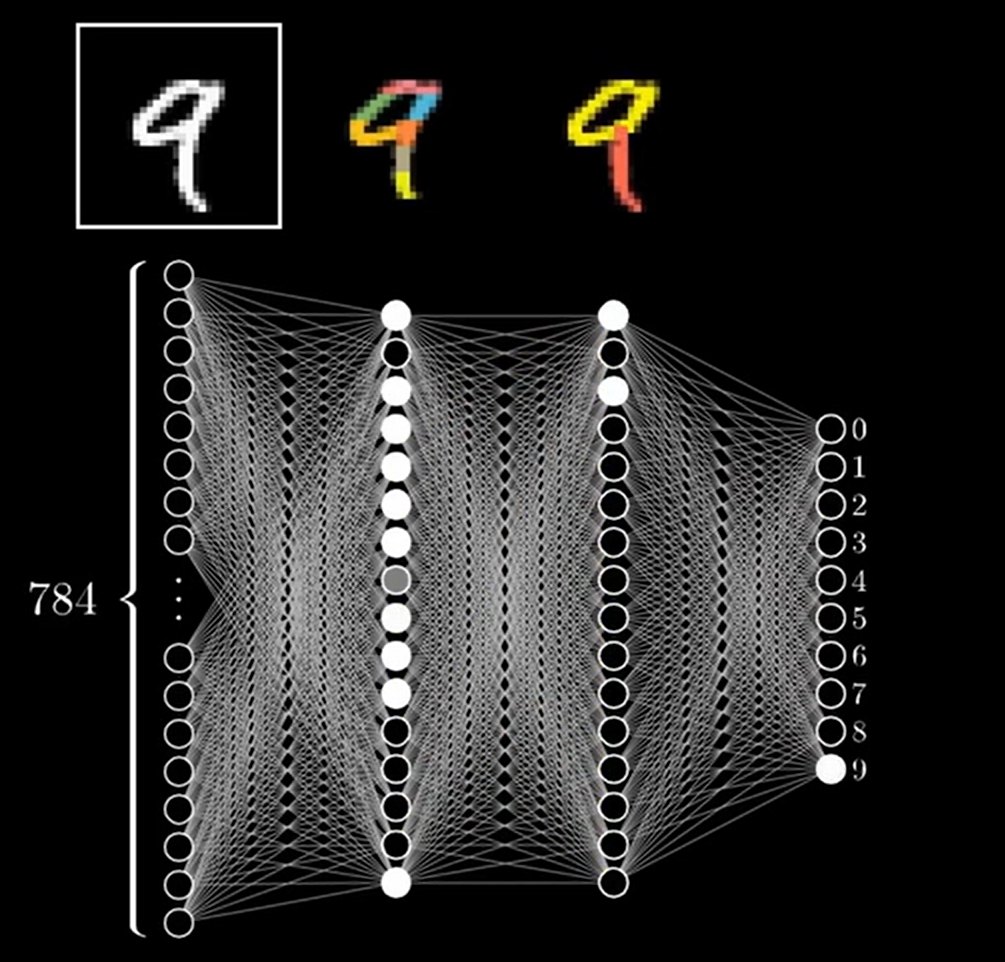
- Input: a 28 × 28 grayscale image = 784 numbers (section 2!).
- Hidden layers combine pixels into strokes, then strokes into loops and lines.
- Output: 10 neurons, one per digit 0–9; the brightest wins — here “9”.
The link to today
A convolutional network (CNN) learns 3 × 3 kernels just like the ones in section 4. Its first layer typically ends up with Sobel-like edge detectors and blob detectors — learned, not designed.
Vision Transformer (ViT): an image as patches

split the image into patches; each patch is a block of numbers
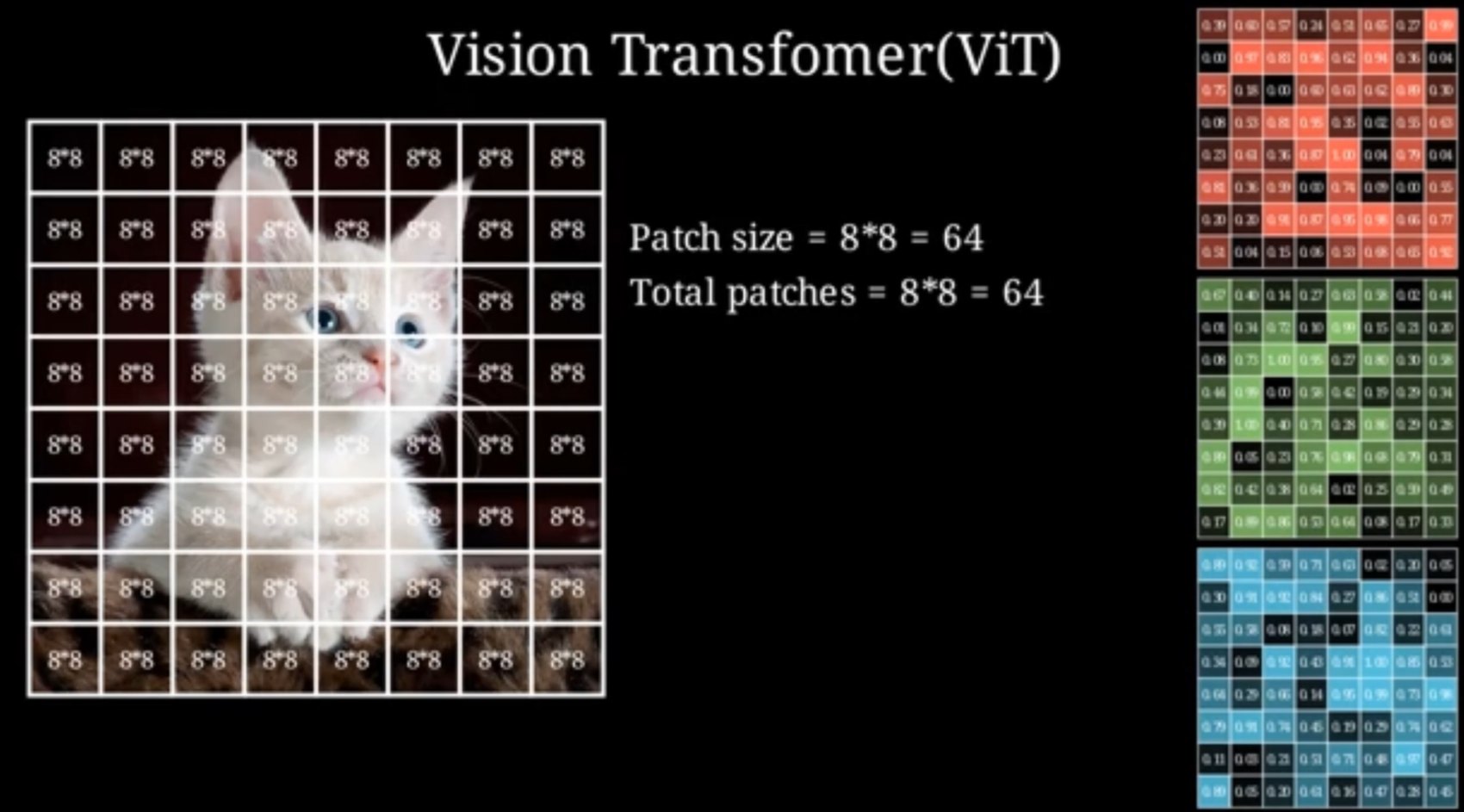
8 × 8 grid → 64 patches
Transformers were built for words. ViT (Dosovitskiy et al., 2021, “An Image is Worth 16×16 Words”) treats each image patch as a word: flatten it, map it to a vector (a token), add its position, and let self-attention relate every patch to every other patch.
ViT: patches become numbers, numbers become tokens

every patch = R, G, B numbers (section 2 again)

each patch → one embedding vector (token)
Running filters backwards: from noise to an image

In section 4 we removed noise. Generative models (diffusion models with transformer backbones) learn to do this so well that they can start from pure noise and remove it step by step, until an image appears that matches a text prompt.