Labs — Intelligent Vision Systems
Fifteen hands-on labs on the Raspberry Pi 5 + a capstone project · BSES · 7th Semester · Section A · University of Lahore · Fall 2026
All labs run on the Raspberry Pi 5. The first two labs bring up the embedded platform; Labs 3–8 build the classical-vision toolbox; Labs 9–12 build real, deployable systems; Labs 13 and 15 are research-paper implementation labs (U-Net and the Transformer, built from scratch); Lab 14 covers edge deployment — culminating in the capstone.
Deliverable for every lab: the stated objective, tasks and deliverable are checked off in the same Monday session (1.5 h theory + 1.5 h lab, 11:00 AM–2:00 PM, E1-404 Lab). Weekly lab deliverables are checkpoints toward the capstone and count within lab participation; the Lab Project (capstone, 30 marks) is the end-to-end vision system deployed on the Raspberry Pi 5 and demonstrated live in Week 16.
Lab-by-lab
| Week | Lab | Title & objective | Tasks | Deliverable |
|---|---|---|---|---|
| 1 | Lab 1 | Raspberry Pi 5 & Embedded Systems I — Setup. | Flash Raspberry Pi OS (64-bit); headless SSH & VNC; system update & Python virtual environment; GPIO and basic embedded I/O; overview of embedded-vision constraints (compute, memory, power). | A booted, updated Pi with a working OpenCV/Python environment + a short setup report. |
| 2 | Lab 2 | Raspberry Pi 5 & Embedded Systems II — Camera, I/O & OpenCV 5.0. | Install & verify OpenCV 5.0 (note key OpenCV 4→5 changes); connect and configure the Pi camera (libcamera/picamera2); read/write images and video on the Pi; remote development workflow; measure capture FPS and latency. | A live capture application on OpenCV 5.0 + an FPS/latency note. |
| 3 | Lab 3 | CV Fundamentals I — Images, Video & Drawing. | Load and save images; load and save videos; drawing functions (lines, shapes, text); basic operations (resize, crop, rotate, ROI). | An image/video I/O utility with on-frame annotations. |
| 4 | Lab 4 | Computer Vision in Practice — From Pixels to Understanding. Hands-on companion to Lecture 4. | Five notebooks, one per lecture demo: (4A) an image is just numbers — pixels, RGB & grayscale arrays; (4B) image classification with ResNet-50; (4C) object detection with RF-DETR & the confidence threshold; (4D) instance segmentation, masks & background blur/replace; (4E) image understanding — captioning & visual question answering with a vision-language model (SmolVLM2). | The five notebooks run end-to-end + answers to each notebook’s “Your turn” tasks. |
| 5 | Lab 5 | Self-Driving Car Vision — Finding Lane Lines. Hands-on companion to Lecture 5 Part II. | Four notebooks, one per pipeline stage: (5A) colour selection in RGB and HLS; (5B) region-of-interest masks; (5C) image gradients & Canny edges; (5D) the Hough transform from scratch and with cv2.HoughLinesP. Then (5E) the full lane-finding pipeline on images and video — Assignment 2; (5F) a pair-programming bug hunt; (5G) a class leaderboard. Notebooks 5A–5D have built-in ✅ auto-checks. |
Notebooks 5A–5D with answers to each “Your turn” task; 5E submitted as Assignment 2. |
| 6 | Lab 6 | Camera Calibration. Hands-on companion to Lecture 6. | Eight notebooks: (6A) the pinhole model & lens distortion in NumPy; (6B) chessboard corners & object points; (6C) calibrateCamera, reprojection error & undistortion (GoPro); (6D) a dash-cam: undistort, bird’s-eye view & lane curvature; (6E) ChArUco & fisheye calibration against a known ground truth; (6F) a pair-programming bug hunt; (6G) stereo calibration & rectification; (6H) calibrate your own Raspberry Pi / USB camera. Built-in ✅ auto-checks. |
Notebooks 6A–6E, 6G with answers to each “Your turn” task; camera.yaml + report for your own camera (6H). |
| 7 | Lab 7 | Features & Matching. | Harris/Shi–Tomasi corners; ORB/SIFT descriptors; brute-force & FLANN matching; Hough lines and circles. | A feature-matching + shape-detection application. |
| 8 | Lab 8 | Geometry — Homography, Panorama & Calibration. | Estimate a homography with RANSAC; stitch a panorama; calibrate the Pi camera and undistort frames. | A stitched panorama + a saved camera-intrinsics file. |
| 9 | Lab 9 | Build a Real-World CV System. | Plan the project and design its architecture; measure the size of an object in 2-D (using calibration); build a defect-recognition system; integrate a database (SQLite/MySQL) to log results. | An end-to-end measuring / defect system logging to a database. |
| 10 | Lab 10 | Stereo & Depth. | Stereo calibration; disparity via block-matching/SGBM; build a depth map; (optional) monocular depth estimation. | A depth/disparity map on a real scene. |
| 11 | Lab 11 | Tracking & Analytics. | Optical flow / KLT; tracking-by-detection with OC-SORT and Strong-SORT; object trajectory; speed estimation; people/vehicle line-crossing counting. | A tracking + counting + speed application. |
| 12 | Lab 12 | Deep Learning — Classification & YOLO Detection. | Classify images with a pretrained model and train a custom classifier by transfer learning (Colab, free GPU); then detect objects on image/video/camera with YOLO, train a custom detector, and try SAHI (small objects) and pose. | A trained custom classifier + a custom YOLO detector running on the Pi. |
| 13 | Lab 13 | Paper Implementation I — U-Net from Scratch. | Read “U-Net: Convolutional Networks for Biomedical Image Segmentation” (Ronneberger et al., 2015); understand the contracting/expanding paths and skip connections; implement the full architecture from scratch in PyTorch; train on a small segmentation dataset; evaluate with IoU/Dice and compare against a library U-Net. | A from-scratch U-Net that segments a dataset + a one-page paper summary. |
| 14 | Lab 14 | Modern Deployment with OpenCV 5.0 & Edge Runtimes. | OpenCV 5.0 on the Pi: migrate an OpenCV 4 pipeline (deprecated APIs, moved modules), fix a CascadeClassifier call, and run YOLOv8n via ONNX in the new DNN engine with hardware acceleration. Then export to TFLite/ONNX, run on ONNX Runtime / Hailo, apply INT8 quantisation, and benchmark latency, throughput and power vs the CPU baseline. | A migrated OpenCV 5 pipeline + YOLOv8n ONNX detection + a quantised model with a benchmark table. |
| 15 | Lab 15 | Paper Implementation II — Transformer from Scratch. | Read “Attention Is All You Need” (Vaswani et al., 2017); implement scaled dot-product attention, multi-head attention, positional encoding and the encoder/decoder blocks from scratch in PyTorch; train on a toy sequence task; connect the mechanism to Vision Transformers (ViT). | A working from-scratch Transformer + a paper summary bridging to ViT. |
| 16 | Capstone | Deployed Vision System on the Raspberry Pi 5. | Integrate the semester’s skills into one complete, real-time system deployed on the Pi; demonstrate live with a short talk, Q&A and peer review. | Live capstone demo, assessed as the Lab Project (30 marks). |
Lab 4 — Computer Vision in Practice (Demos & Examples)
Lab 4 is the hands-on half of Lecture 4 — Computer Vision: How computers see the world around us (PDF). Each notebook is one of the lecture’s ▶︎ DEMO slides, and together they climb the same ladder: pixels → classify → detect → segment → understand. All five work on the same photo, so you can watch one scene go from raw numbers to a conversation about what is happening in it.
How to run: click Colab (free GPU, nothing to install), uncomment the !pip install line in the first code cell and run all cells — the notebook fetches demo.jpg itself. To run locally or on the Raspberry Pi 5, install requirements.txt and open the notebooks in Jupyter (see the Lab 4 README).
Deliverable: every notebook ends with three “Your turn” tasks (use your own photos). Submit the five notebooks with code, outputs and a short answer to each task.
| Part | Demo & what you do | Lecture 4 section | Model | Notebook |
|---|---|---|---|---|
| 4A | An image really is just numbers Open a photo, inspect its (H, W, 3) array, zoom to a patch, print every pixel’s (R, G, B) values, then convert to grayscale (0–255). |
2 · How Images Are Represented demo slide 17 |
OpenCV + NumPy | Colab · View · Download |
| 4B | Classify a photo Top-5 labels with confidences; crop to one object or drop colour and watch the prediction change — and see why one label is not enough. |
3 · Image Classification demo slide 25 |
ResNet-50 (ImageNet) | Colab · View · Download |
| 4C | Detect objects One pass → a box + label + confidence for every object; draw them with supervision; compare thresholds 0.2 vs 0.7. |
4 · Object Detection demo slide 32 |
RF-DETR Small (COCO) | Colab · View · Download |
| 4D | Paint the pixels Per-object masks, box vs. mask, then use the mask to blur (“portrait mode”) or replace the background. |
5 · Object Segmentation demo slide 39 |
RF-DETR Seg Small (COCO) | Colab · View · Download |
| 4E | Ask the image a question Caption the scene, answer questions (VQA), reason about relationships — and probe where understanding still breaks. |
6 · Image Understanding demo slide 46 |
SmolVLM2-500M (VLM) | Colab · View · Download |
Model weights download on first run (ResNet-50 ≈ 100 MB, RF-DETR ≈ 100–150 MB each, SmolVLM2 ≈ 1 GB). Parts 4A–4D run on a laptop CPU or the Pi 5; 4E is best on Colab or a laptop.
Lab 5 — Self-Driving Car Vision: Finding Lane Lines
Lab 5 is the hands-on half of Lecture 5 (Part II) — Computer Vision for Self-Driving Cars (PDF). The notebooks follow the lecture one step at a time and build a single pipeline: colour → region → edges → lines → lanes → video. Notebook 5E is Assignment 2. Adapted and updated from the Finding Lane Lines lesson and Project 1 of the Udacity Self-Driving Car Engineer Nanodegree.
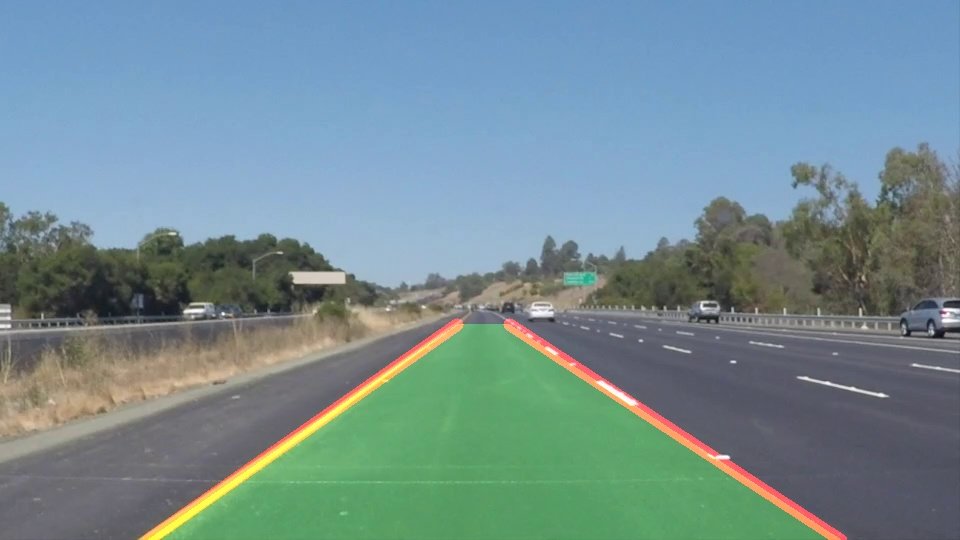
How to run: click Colab and run all cells (uncomment the !pip install line on a fresh runtime) — each notebook downloads the images it needs, and the project notebook fetches the test videos from the Udacity project repository. Locally or on the Raspberry Pi 5: install requirements.txt and open the notebooks in Jupyter (see the Lab 5 README). No GPU or model downloads needed; tested with OpenCV 5.0.
Auto-checks: after each quiz in 5A–5D a ✅ check cell tells you whether your result is good enough, or gives a 💡 hint — never the answer — so pairs can check themselves without waiting for the TA.
Deliverable: notebooks 5A–5D each end with three “Your turn” tasks — submit them with code, outputs and short answers. Notebook 5E is submitted as Assignment 2 (with your two output videos and the write-up).
| Part | What you do | Lecture 5 Part II section | Notebook |
|---|---|---|---|
| 5A | Colour selection Read test.jpg as an array, black out pixels below RGB thresholds (the Udacity quiz), then see yellow lines vanish under RGB and recover them with an HLS white + yellow mask. |
2 · Colour selection lecture slide |
Colab · View · Download |
| 5B | Region of interest masking Build a triangular mask with np.polyfit + np.meshgrid, combine colour and region, then generalise to any polygon with cv2.fillPoly. |
3 · Region masking lecture slide |
Colab · View · Download |
| 5C | Canny edge detection Plot a cross-section and its derivative, compute Sobel gradients, then tune Gaussian blur and the Canny low/high thresholds (ratio 1:2 – 1:3). |
4 · Canny edge detection lecture slide |
Colab · View · Download |
| 5D | Hough transform Code a Hough accumulator from scratch on toy points, then use cv2.HoughLinesP with a quadrilateral mask to keep only the lane lines. |
5 · Hough transform lecture slide |
Colab · View · Download |
| 5E | Assignment 2 — lane-finding project The full pipeline on six test images and two videos: average + extrapolate to one line per lane, smooth across frames, write up the shortcomings. Hand-out & rubric. |
6–7 · Pipeline & Assignment 2 lecture slide |
Colab · View · Download |
| 5F | Bug hunt 🐞 (pairs) Eight planted classic bugs — BGR vs RGB, array aliasing, PNG 0–1 values, even blur kernel, float polygon, HoughLinesP returning None, swapped slope sign, divide-by-zero. Predict, run, fix; each bug has its own check and the scoreboard counts to 8/8. |
Common pitfalls lecture slide |
Colab · View · Download |
| 5G | Leaderboard 🏁 Score your lane_lines() on 92 labelled frames (46 clean + 46 degraded by night, shadows, haze, noise, glare, faded paint), see your worst frames, and submit to the class leaderboard. |
Pipeline & Assignment 2 lecture slide |
Colab · View · Download |
Test images and videos © Udacity, Inc. (CarND-LaneLines-P1, MIT licence).
Lab 5 Leaderboard — Lane Finding 🏁
Teams score their lane finder with 07-leaderboard.ipynb on 92 frames: 46 clean frames from the Udacity videos and test images, and 46 hard copies degraded by night, tree shadows, haze, sensor noise, glare or faded paint. A lane is correct when it is within 20 px of the label on average. Ranking: overall accuracy, then mean error, then speed. Send the line your notebook prints to the TA to appear here.
| # | Team | Overall | Clean | Hard | Mean error | Speed |
|---|---|---|---|---|---|---|
| Loading the leaderboard… | ||||||
Lab 6 — Camera Calibration
Lab 6 is the hands-on half of Lecture 6 — Camera Calibration (PDF). You build the camera model yourself, calibrate a wide-angle GoPro, a car dash-cam, a ChArUco/fisheye camera whose true parameters are known, and a stereo pair — then your own Raspberry Pi or USB camera. Partly adapted from the Camera Calibration lesson of the Udacity Self-Driving Car Engineer Nanodegree.
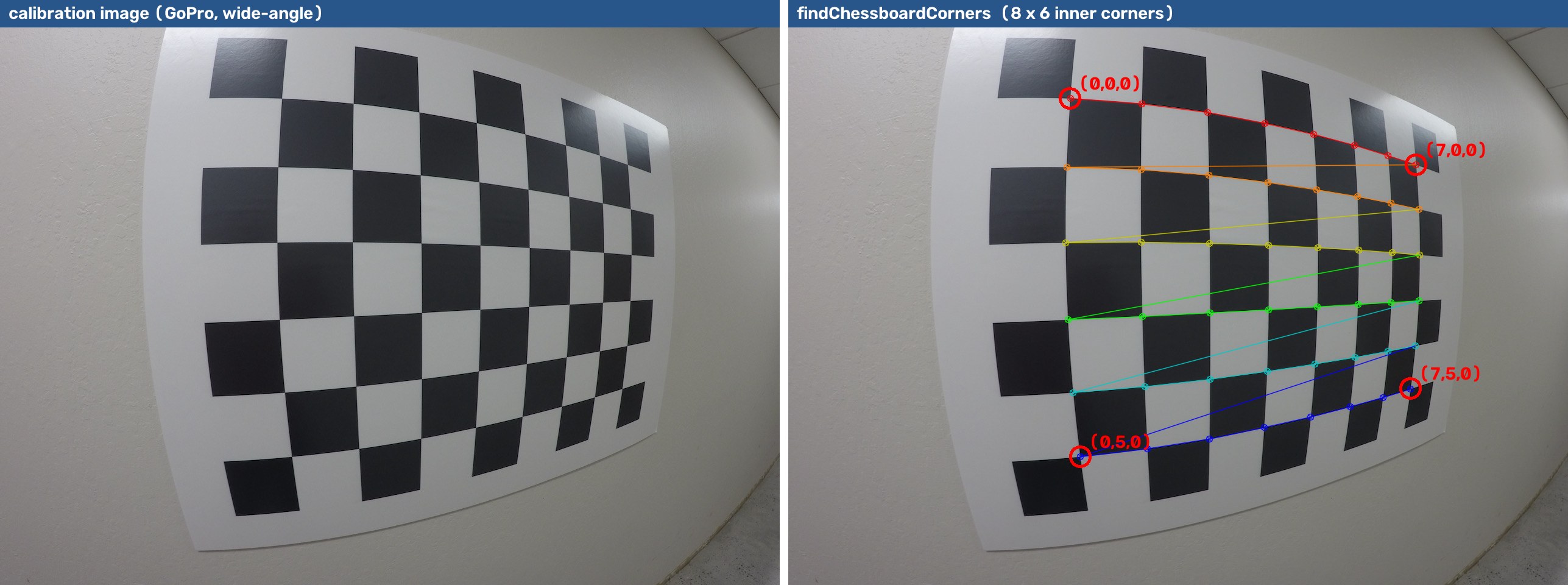
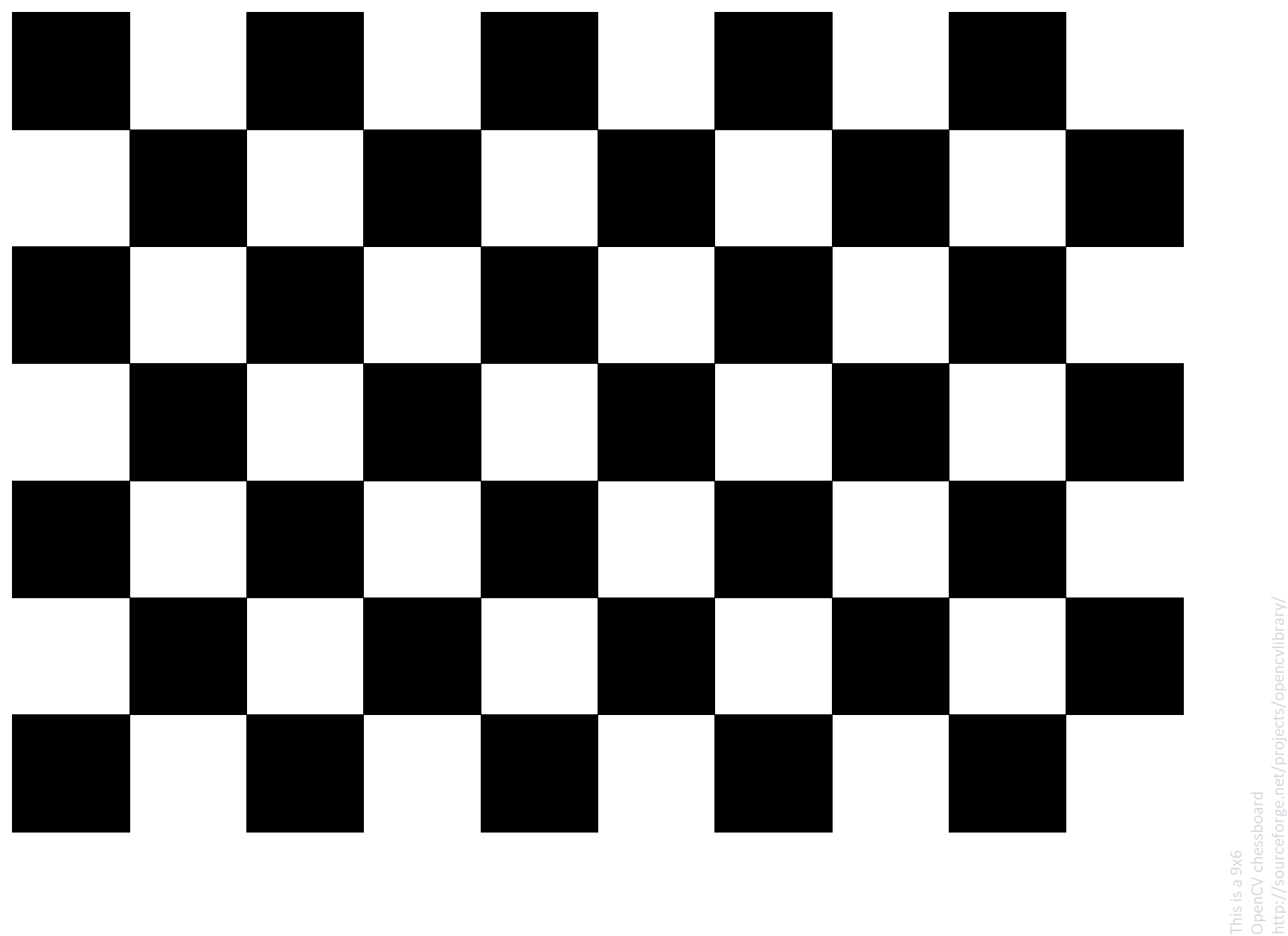
How to run: click Colab and run all cells (uncomment the !pip install line on a fresh runtime) — each notebook downloads the images it needs. 6H runs on the machine the camera is attached to (Pi 5 or laptop) and needs a printed 9 × 6 chessboard (pattern.png). Locally: install requirements.txt (see the Lab 6 README). Tested with OpenCV 5.0 (4.7+ works); the notebooks point out every OpenCV 4 → 5 change they rely on.

Auto-checks: after each exercise a ✅ check cell tells you whether your result is good enough, or gives a 💡 hint — never the answer. Scripts for your own projects: capture_calib.py and calibrate.py.
📷 Live webcam calibration: the Webcam Calibration Studio calibrates any webcam in the browser with real OpenCV (detect, auto-capture, calibrate, undistort live, measure distance, download camera.yaml), or offline with webcam_calibration_studio.py. Print the 9 × 6 pattern first.
Video labs 6I–6M: each recommended video from the lecture’s Watch & learn slide has a step-by-step tutorial and its own notebook — start with 6I, a Raspberry Pi camera in 15 minutes.
Deliverable: notebooks 6A–6E and 6G with the “Your turn” tasks answered; the 6F bug-hunt scoreboard shown in class; for 6H your camera.yaml, error/coverage plots and answers — keep camera.yaml for Lab 9 and the project.
| Part | What you do | Lecture 6 section | Notebook |
|---|---|---|---|
| 6A | Pinhole camera & lens distortion Project 3-D points by hand, compute K from the Raspberry Pi Camera v2 datasheet, implement OpenCV’s radial + tangential distortion model in NumPy and see barrel, pincushion, mustache and tangential grids. |
2–3 · Pinhole & distortion lecture slide |
Colab · View · Download |
| 6B | Finding chessboard corners Count the inner corners (the Udacity quiz), findChessboardCorners on 36 GoPro images, object points with np.mgrid, why one image fails, cornerSubPix vs findChessboardCornersSB. |
5 · Finding corners lecture slide |
Colab · View · Download |
| 6C | Calibrate & undistortcalibrateCamera, the cal_undistort quiz, per-view reprojection errors, dropping a bad view (RMS 0.82 → 0.57 px), parameter uncertainty, alpha and the rational model, fast remap, saving YAML. |
5 · calibrateCamera lecture slide |
Colab · View · Download |
| 6D | Road camera: bird’s-eye view & curvature Calibrate a dash-cam (mixed image sizes!), the corners_unwarp quiz, choose source points for a bird’s-eye view, fit f(y) = Ay² + By + C and measure the lane radius in metres. |
7 · Perspective transform lecture slide |
Colab · View · Download |
| 6E | ChArUco & fisheye with a known ground truth Ray-traced pictures from a hidden camera: calibrate with a partly covered ChArUco board and recover K within 0.1 %, then a 190° fisheye with cv2.fisheye (and why it needs a starting guess). |
6 · ChArUco & fisheye lecture slide |
Colab · View · Download |
| 6F | Bug hunt 🐞 (pairs) Eight planted calibration bugs: squares vs corners, (h, w) vs (w, h), object-point order, mixed image sizes, OpenCV 5 corner shapes, src/dst order, resizing without scaling K, fisheye point layout. Scoreboard to 8/8. |
Common pitfalls lecture slide |
Colab · View · Download |
| 6G | Stereo calibration & rectification Calibrate OpenCV’s left/right pairs, stereoCalibrate → R, T, check the epipolar constraint, stereoRectify + remap (matching rows within 0.2 px), a first disparity map. |
6 · Stereo lecture slide |
Colab · View · Download |
| 6H | Calibrate your own camera Capture 20–30 views with Picamera2 or a webcam ( capture_calib.py), calibrate (calibrate.py), check coverage and per-view error, save camera.yaml, measure a distance with solvePnP. Runs on the Pi / your laptop, not Colab. |
6 · Your own camera lecture slide |
Colab · View · Download |
| 🎬 Video labs — one notebook per recommended video, with a step-by-step tutorial page. | |||
| 6I | Video lab: Raspberry Pi camera in 15 minutes 🎬 After The Drone Dojo: auto-capture 20 good, different frames at 640×480 ( pi_calibrate_20.py), calibrate, then the ArUco + ruler test (aruco_pose_test.py): slide the marker 60 mm and check the camera says 60 mm. Virtual Pi camera first, then your real Pi. |
Watch & learn tutorial · lecture slide |
Colab · View · Download |
| 6J | Video lab: get images → calibrate (Nicolai Nielsen) 🎬 Both of his videos: get_images.py (s = save, ESC = quit), the calibration script line by line, pickle files, undistort vs remap timing, his “total error” vs the RMS, and how many views you need. |
Watch & learn tutorial · lecture slide |
Colab · View · Download |
| 6K | Video lab: calibration explained (Kevin Wood) 🎬 His calibration app on 36 GoPro images: plot all detections, save a JSON, build P = K[R|t] by hand, the straight-line undistortion test, and a calibration doctor for his four improvement tips (count, coverage, cut-off boards, blur). |
Watch & learn tutorial · lecture slide |
Colab · View · Download |
| 6L | Video lab: ChArUco pipeline (Nicolai Nielsen) 🎬 The video’s 18×11 DICT_4X4_100 board, free in OpenCV: capture, detect IDs, per-image errors, remove two shaky rolling-shutter shots (RMS 0.67 → 0.33 px), JSON export, 3-D view of the boards. |
Watch & learn tutorial · lecture slide |
Colab · View · Download |
| 6M | Video lab: Zhang’s method from scratch (Cyrill Stachniss) 🎬 Cyrill’s three videos in NumPy: P = K[R|t] and its 11 degrees of freedom, the DLT from 6+ 3-D points, one homography per photo, two equations per photo → B → Cholesky → K (within 0.1 %), then OpenCV’s refinement on a real lens. |
Watch & learn tutorial · lecture slide |
Colab · View · Download |
GoPro and dash-cam images © Udacity, Inc. (CarND-Camera-Calibration, CarND-Advanced-Lane-Lines, MIT licence); stereo pairs from the OpenCV samples (Apache 2.0).
Reading & Implementing Research Papers
Two mid-semester labs (after the midterm) teach how to turn a paper into working code. We practise a repeatable, five-step method on two landmark architectures — reading each paper together and building the model from scratch in PyTorch:
- Skim first — read the abstract, figures and conclusion to grasp the problem and the key idea before touching any equation.
- Map the architecture — turn the model figure into a block diagram: inputs, layers, tensor shapes, and how blocks connect.
- Extract the maths — write down the core equations (e.g. scaled dot-product attention, the segmentation loss) and exact layer dimensions.
- Implement from scratch — build each block in PyTorch, checking tensor shapes at every step against the paper.
- Reproduce & verify — train on a small dataset, compare behaviour/metrics to the paper, and note any gaps or simplifications.
Target papers: (1) Ronneberger et al., “U-Net” (2015) — Lab 13; (2) Vaswani et al., “Attention Is All You Need” (2017) — Lab 15. Each lab produces working code plus a one-page paper summary.
Featured Deep Dive — OpenCV 5.0 (Week 14 / Lab 14)
OpenCV has underpinned computer vision for two decades; OpenCV 5.0 brings a modernised architecture, a redesigned DNN engine, first-class ONNX support and stronger hardware acceleration — with API changes that affect existing code. We cover it directly in Week 14 and use it in the lab:
- Introduction & architecture — why OpenCV 5 was introduced and what changed.
- Breaking changes & modules — deprecated APIs, moved modules, compatibility considerations.
- The new DNN engine — ONNX support, modern deep-learning workflows and performance gains.
- Data types & hardware — optimisations for CPUs, GPUs and AI accelerators.
- Migration strategies — upgrading OpenCV 4 applications with recommended best practices.
- Live/lab demos — OpenCV 5 install, pipeline migration, CascadeClassifier fixes, and YOLOv8n ONNX detection.
Outcome: students can confidently migrate, optimise and modernise production computer-vision pipelines with OpenCV 5.
Capstone Project
Students build one integrated, real-time vision system deployed on the Raspberry Pi 5, demonstrated live with a short talk, Q&A and peer review. Assessed as the Lab Project (30 marks) — the largest single component of the course grade.
Milestones
| When | Milestone | Deliverable |
|---|---|---|
| Week 9 | Project proposal | Problem, target hardware tier, dataset/data plan, success metric. |
| Week 15 | Project report due | Written report: method, architecture, on-device results, discussion. |
| Week 16 | Capstone demo | Live demonstration on Raspberry Pi 5 target hardware + short talk + Q&A + peer review. |
Grading rubric (Lab Project = 30 of 100 course marks)
| Criterion | Weight |
|---|---|
| Technical difficulty & correctness | 30% |
| Runs on the Raspberry Pi 5 in real time (or a justified budget) | 25% |
| Experimental rigour — baselines, ablations, honest metrics | 20% |
| Report clarity & reproducibility | 15% |
| Presentation & demo | 10% |
Advanced project bank
Every project must run on the Raspberry Pi 5, include a simple GUI or dashboard, and log results. Projects are grouped by theme; each can be scaled up (edge deployment, multi-camera, alerting) for a higher grade.
- Detection, counting & monitoring: real-time object detection (YOLOv7/v8/v11/YOLO26) · weapon detection · people entry/exit counting (smart occupancy) · intrusion / zone monitoring · PPE-compliance detection · animal detection · vehicle traffic monitoring · smart parking (slot occupancy).
- Recognition & classification: face-recognition attendance system · facial-emotion detection · age & gender detection · traffic-sign recognition (EfficientNet) · face-mask detection · driver-distraction classification (ResNet-50).
- Tracking & analytics: vehicle speed tracking (calibrated) · licence-plate detection + recognition (OCR / VLM) · object trajectory & multi-object tracking (OC-SORT / Strong-SORT) · measure object size in 2-D.
- Pose, gesture & safety: driver-drowsiness detection (EAR/MAR) · human-fitness / exercise-rep tracking (pose) · fall-detection + alert · hand-gesture recognition & control.
- Systems & IoT integration: AI accident detection with MQTT alerting · defect-recognition with database logging · Flask/Tkinter dashboards · edge deployment with quantisation & benchmarking.
- Challenge tier (bonus): a custom visual-classification feature, video-based detection monitoring, or a full end-to-end custom vision system — designed with the instructor.
Toolchain & Code
Platform: Raspberry Pi 5 (+ AI HAT / Hailo, Pi Camera, ESP32-CAM); Python, OpenCV 5.0, PyTorch/TensorFlow, Ultralytics YOLO (incl. YOLO26); Google Colab for training.
Prerequisites: Python programming; basic linear algebra & probability.
Tools & platforms: Ultralytics YOLO — docs.ultralytics.com · Raspberry Pi AI / Hailo — raspberrypi.com/documentation/computers/ai.html · OpenCV 5.0 (docs & 4→5 migration guide) — docs.opencv.org · Roboflow (labelling & datasets) — roboflow.com · Google Colab (free GPU training) — colab.research.google.com.
Key research papers (implementation labs): Vaswani et al. (2017) — “Attention Is All You Need” — arxiv.org/abs/1706.03762 (Lab 15) · Ronneberger et al. (2015) — “U-Net” — arxiv.org/abs/1505.04597 (Lab 13).
Tool setup walk-throughs are on the Tutorials page.